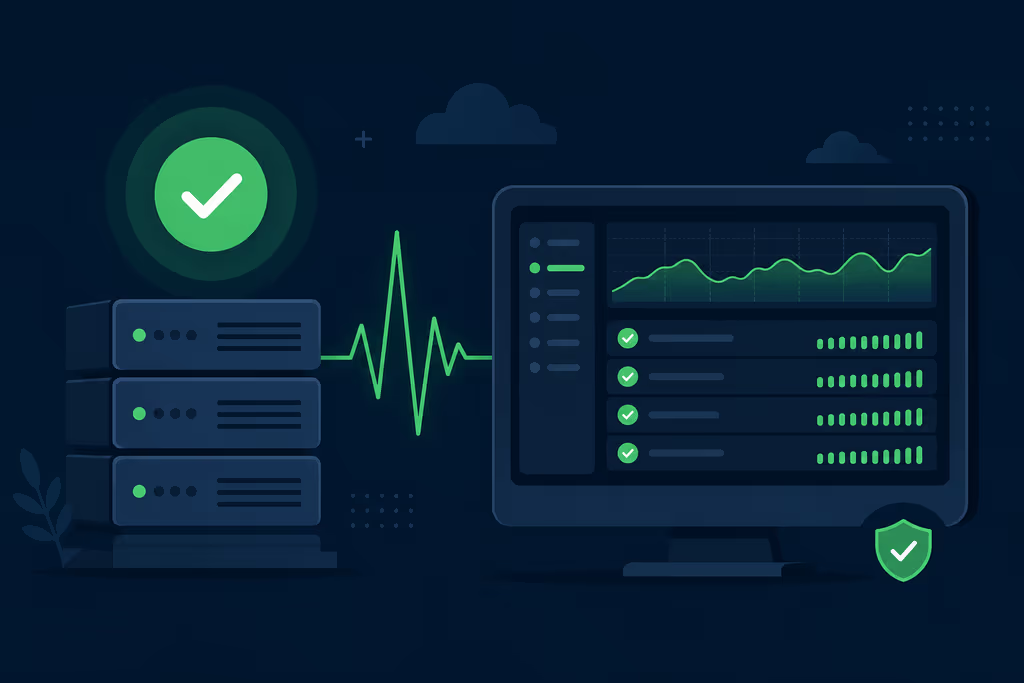
Caption: Uptime Kuma on my VPS — HTTP, TCP, and Docker checks without a SaaS uptime bill.
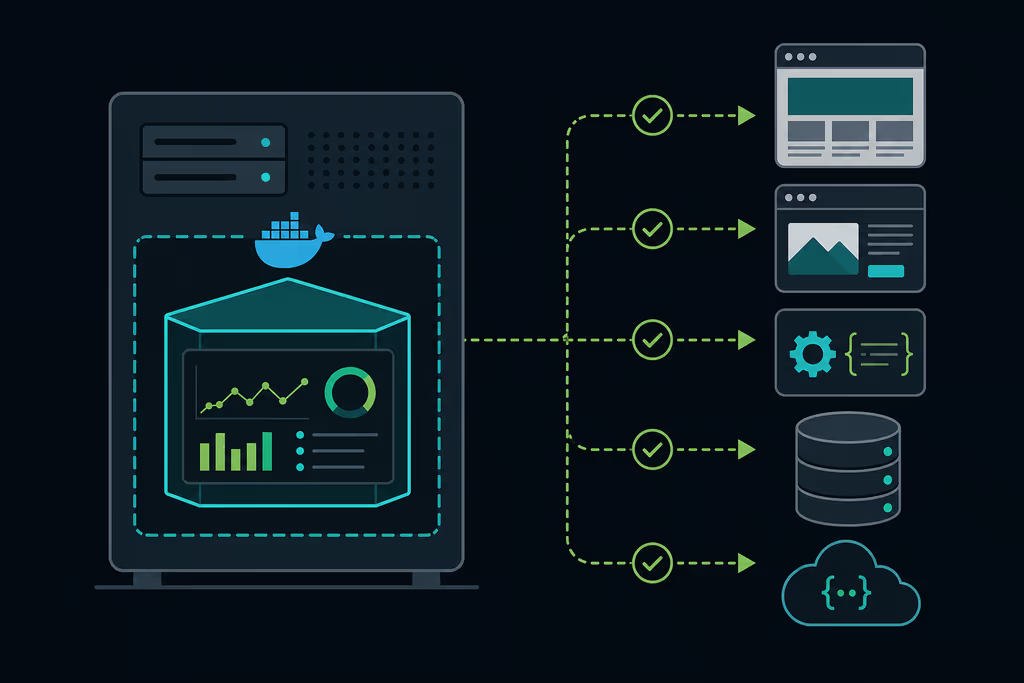
Caption: Kuma sits on the VPS and checks websites, APIs, and services I actually run.
Introduction
I wanted to hear about downtime from a dashboard, not from a client. Uptime Kuma is the small Docker box I put on Ubuntu 24.04 for HTTP(s), TCP, ping, DNS, Docker, and a pile of other checks — plus Telegram when something flips red.
On a lab VPS this install is famous for failing to start because port 3001 is already taken. I got bind: address already in use from Compose, moved the host port, and the UI came up. After that I spent more time on false reds (Cloudflare treating the VPS like a bot) than on the container itself.
I keep it behind HTTPS before I expose the admin UI. The data stays on my disk in ./data.
Why I picked Uptime Kuma
- Check data stays on my VPS — I am not paying Pingdom to watch my own sites.
- HTTP(s), keyword, TCP, ping, DNS, Docker, Postgres, MySQL, Redis — one UI.
- Response-time graphs and a public status page I can send to a client.
- Telegram, Discord, Slack, email, Gotify, and a long list of other notifiers.
- It fits on a 1 GB RAM box next to other containers if I do not go crazy on check count.
Prerequisites
Hardware (comfortable minimum):
- 1+ CPU core (2 if this box also runs apps)
- 1 GB RAM (2 GB+ if I add a lot of monitors)
- 5+ GB free disk
- Ubuntu 24.04 LTS
Software & accounts:
- Root or sudo
- A domain (optional, but I want HTTPS)
- Docker Engine 24+ and the Compose plugin
- Outbound internet so checks can reach targets
Security notes:
- SSH keys; password login off on production.
- HTTPS before the UI is public.
- Strong admin password; extra reverse-proxy auth if the VPS is noisy.
Update first:
sudo apt update && sudo apt upgrade -y
sudo apt install curl wget git ca-certificates -y
Installation Guide
Official Docker image — that is the path I use.
1. Install Docker Engine
curl -fsSL https://get.docker.com | sudo sh
sudo usermod -aG docker $USER
newgrp docker
Verify Docker is running:
docker --version
docker compose version
2. Create Persistent Directories
sudo mkdir -p /opt/uptime-kuma
cd /opt/uptime-kuma
3. Create docker-compose.yml
services:
  uptime-kuma:
    image: louislam/uptime-kuma:1
    container_name: uptime-kuma
    restart: unless-stopped
    volumes:
      - ./data:/app/data
    ports:
      - "3001:3001"
Save the file, then start the stack:
docker compose up -d
docker compose ps
4. Initial Setup via Web UI
Open http://YOUR_SERVER_IP:3001 in the browser.
- Create the first admin account (this becomes the owner).
- Log in to the dashboard.
- Click Add New Monitor for the first HTTP check.
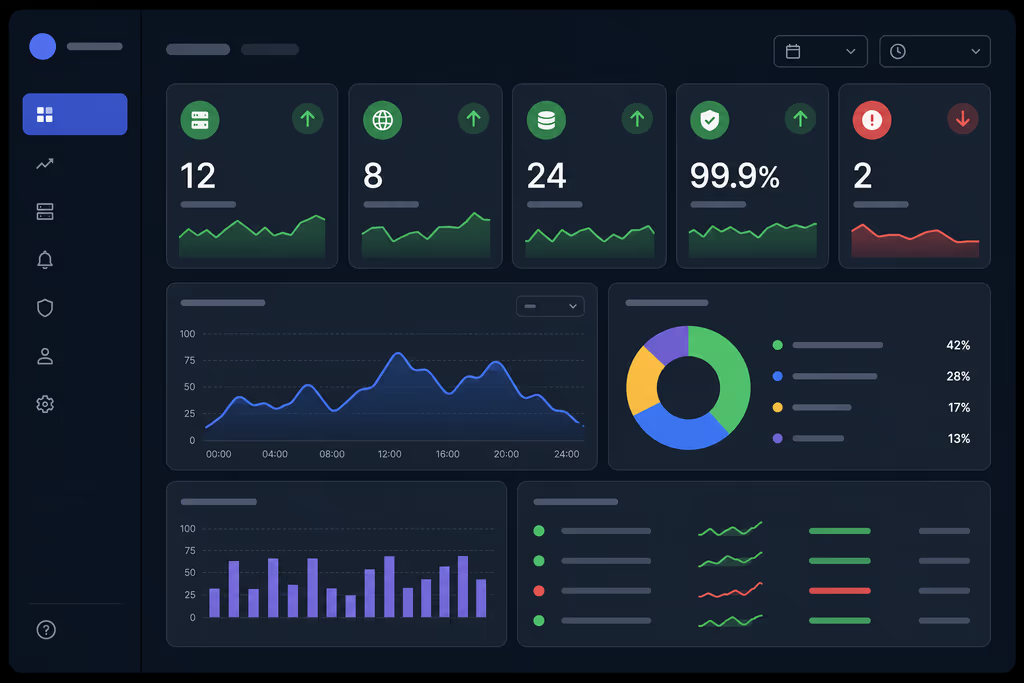
Caption: Monitor cards and response-time overview after the first checks are in.
5. Enable HTTPS with a Reverse Proxy (Recommended)
Option A — Caddy (automatic Let's Encrypt):
sudo apt install -y debian-keyring debian-archive-keyring apt-transport-https curl
curl -1sLf 'https://dl.cloudsmith.io/public/caddy/stable/gpg.key' | sudo gpg --dearmor -o /usr/share/keyrings/caddy-stable-archive-keyring.gpg
curl -1sLf 'https://dl.cloudsmith.io/public/caddy/stable/debian.deb.txt' | sudo tee /etc/apt/sources.list.d/caddy-stable.list
sudo apt update && sudo apt install caddy -y
Create /etc/caddy/Caddyfile entry:
monitor.yourdomain.com {
    reverse_proxy localhost:3001
}
Reload Caddy:
sudo systemctl reload caddy
Option B — Nginx with Certbot if Nginx is already on the box.
Configuration
Monitor Examples
HTTP(s) website check:
- Monitor Type: HTTP(s)
- URL:
https://www.nzian.xyz - Heartbeat Interval: 60 seconds
- Retries: 3
- Accepted Status Codes: 200-299
TCP port check (e.g. MySQL):
- Monitor Type: Port
- Hostname:
db.internal.example.com - Port: 3306
Keyword check (verify page content):
- Monitor Type: HTTP(s) — Keyword
- URL:
https://your-app.com/health - Keyword:
"ok"
Notification Channels
- Go to Settings → Notifications.
- Click Setup Notification.
- Choose a provider (Telegram and Discord are what I use for client boxes).
- Attach the notification to each monitor under Notifications.
Example Telegram setup:
- Create a bot via @BotFather.
- Paste the bot token into Uptime Kuma.
- Send
/startto the bot, then use Get chat ID in Uptime Kuma.
Status Page
- Go to Status Pages → New Status Page.
- Add monitor groups (e.g. "Production APIs", "Client Sites").
- Set a slug like
statusand enable public access. - Share
https://monitor.yourdomain.com/status/your-slug.
Docker Socket Monitoring (Optional)
To watch Docker containers on the same host, mount the socket (I only do this on a dedicated monitoring VPS):
volumes:
  - ./data:/app/data
  - /var/run/docker.sock:/var/run/docker.sock:ro
Usage
First-login checklist:
- Unique strong password.
- Monitors for every production URL I care about.
- At least two notification channels (Telegram + email).
- A status page if a client needs to see green bars.
- Test alerts by pausing a monitor or stopping a test container.
Daily:
- Glance at the dashboard.
- Read incident history when something goes red.
- 60s heartbeats for APIs I get paged on; 5m for internal tools.
Worth turning on later:
- Prometheus metrics endpoint (Grafana)
- Maintenance windows before deploys
- Tags by client or project
Where it broke
On a lab Ubuntu 24.04 box this Compose file is famous for dying on port 3001.
1. bind: address already in use
docker compose up -d failed. Logs from docker compose logs -f showed the host port already taken — leftover Node app, another Kuma attempt, or something else on 3001.
Fix: change the host side in docker-compose.yml, for example "3002:3001", then:
docker compose up -d
docker compose ps
If Caddy/Nginx still points at 3001, I update the reverse proxy to match.
2. Monitors flip red while the site is fine
That was not a Compose bug. Cloudflare bot fight, fail2ban, or a timeout that was too tight. I bumped retries and timeout, and allowlisted the VPS IP where I could. Self-signed targets need Ignore TLS/SSL errors per monitor — I only do that for lab boxes I control.
Notifications that never fire are usually a bad chat ID / webhook, or the monitor was never attached to the notification. I re-test the provider before I blame Kuma.
Troubleshooting
- High CPU on a small VPS: fewer monitors, or longer intervals on the boring checks.
- Empty dashboard after a rebuild:
./datawas not mounted. I never run this image without that volume. - Upgrade: from
/opt/uptime-kuma,docker compose pull && docker compose up -d.
Deeper issues: GitHub discussions and release notes before a major bump.
Scaling, Securing, and Next Steps
- Backup: copy
/opt/uptime-kuma/data— that is config and history. - Separate VPS: if the app box dies, I still want alerts. Kuma belongs on a different machine when I can afford it.
- Reverse-proxy auth in front of the admin UI.
- A second Kuma elsewhere that watches the first instance.
- Grafana if I want longer trends than the built-in charts.
- Keep
docker-compose.ymlin Git.
Conclusion
Uptime Kuma is running in Docker on my Ubuntu box, data under /opt/uptime-kuma/data, HTTPS on the domain, Telegram on the monitors I actually care about. I hear about a red check in seconds instead of hours.
Next I would move it off the same VPS as the apps, and restore that data directory once on a spare box so I trust the backup. Port 3001 was the install wall; Cloudflare false reds were the week-two wall.
Did you hit the same wall?
I got stuck on port 3001 already in use (bind: address already in use). Did you hit the same thing, or a different one — Cloudflare false positives, notifications that never fired, a missing ./data volume? Tell me in the comments. I read them.
Need this done on your server?
I deploy and harden Laravel/CodeCanyon apps on cPanel or VPS, and offer monthly Server Watch retainers. Hire for deploy · Care plan
References
- Official Site: https://uptime.kuma.pet/
- GitHub Repository: https://github.com/louislam/uptime-kuma
- Docker Hub Image: https://hub.docker.com/r/louislam/uptime-kuma
- Wiki & Docs: https://github.com/louislam/uptime-kuma/wiki