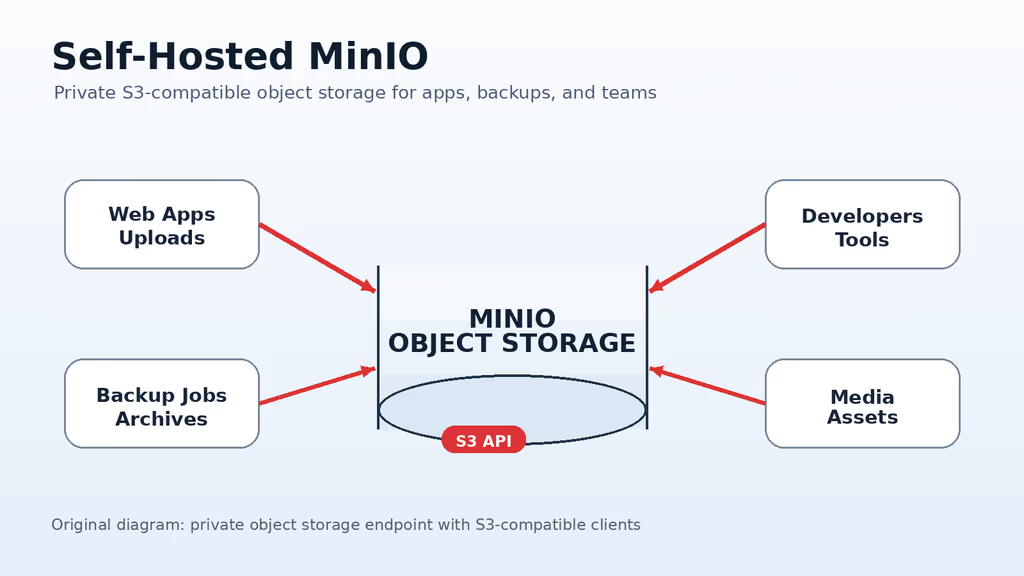
Caption: MinIO on my VPS — S3-compatible buckets without sending every backup to a public cloud.
Introduction
I wanted object storage my Laravel apps and backup jobs could speak S3 to — without another AWS bill for files that never need to leave my network. MinIO is that server: change endpoint, keys, and bucket name, keep the SDK.
This is not a blog install. Other apps will assume the bucket is still there after a disk scare. I do not use minioadmin/minioadmin on anything that has a public IP.
On Ubuntu 24.04 the stack is famous for a console that redirects to the wrong URL. Official-style fix: MINIO_BROWSER_REDIRECT_URL=https://console.s3.example.com, restart, and Nginx must forward X-Forwarded-Proto. The other wall is S3 signature errors when the client is not on path-style access or the clock is wrong. I bound 9000/9001 to localhost, split two Nginx vhosts, and created a scoped user so apps never see the root keys.
Why I picked MinIO
- Anything that talks S3 can usually talk MinIO with a different endpoint.
- One container is enough for a personal or small-team box if disks and backups are real.
- Keeping objects next to the apps cuts the round trip I was paying a public cloud for.
mccreates buckets, mirrors data, and checks the server from a terminal.- I pick the region, firewall, and retention.
It is not a disaster-recovery plan by itself. If the data matters, a second copy lives off this host.
Prerequisites
Hardware:
- 2 CPU / 2 GB RAM for a small deploy
- SSD or NVMe
- Disk for objects, versions, failed multiparts, logs, local archives
- A second place for backups (another VPS, NAS, or another S3)
Software and accounts:
- Ubuntu 24.04 LTS with sudo
s3.example.comfor the APIconsole.s3.example.comfor the browser console- DNS for both
- Docker + Compose
- Nginx + Certbot
- Password manager for root and app keys
Security notes:
- No default
minioadminon an internet host. - Container ports on
127.0.0.1only; HTTPS via Nginx. - Root account for admin, not for apps.
- One scoped user/policy per app or backup job.
- Backup objects + config; restore once before important files.
sudo apt update
sudo apt upgrade -y
sudo apt install -y ca-certificates curl gnupg git ufw nginx certbot python3-certbot-nginx

sudo ufw allow OpenSSH
sudo ufw allow 80/tcp
sudo ufw allow 443/tcp
sudo ufw enable
sudo ufw status
Installation Guide
Compose, bind-mounted data, two Nginx hosts. API on s3.example.com, console on console.s3.example.com.
1. Install Docker Engine
curl -fsSL https://get.docker.com | sudo sh
sudo usermod -aG docker "$USER"
newgrp docker

docker --version
docker compose version
Log out/in if the docker group is not active yet.
2. Create the MinIO Project Directory
sudo mkdir -p /opt/minio/data /opt/minio/backups
sudo chown -R "$USER":"$USER" /opt/minio
chmod 700 /opt/minio/data /opt/minio/backups
cd /opt/minio
data is objects and metadata. backups is local staging — real copies leave the machine.
3. Generate Root Credentials and Environment Settings
cd /opt/minio
MINIO_ROOT_USER_VALUE="minio-root-$(openssl rand -hex 6)"
MINIO_ROOT_PASSWORD_VALUE="$(openssl rand -base64 48 | tr -d '\n')"

cat > .env <<EOF
MINIO_ROOT_USER=${MINIO_ROOT_USER_VALUE}
MINIO_ROOT_PASSWORD=${MINIO_ROOT_PASSWORD_VALUE}
MINIO_SERVER_URL=https://s3.example.com
MINIO_BROWSER_REDIRECT_URL=https://console.s3.example.com
EOF

chmod 600 .env
printf 'Stored MinIO root credentials in /opt/minio/.env\n'
Both values in the password manager. Root does not go into application .env files.
4. Create the Docker Compose File
services:
  minio:
    image: quay.io/minio/minio:latest
    container_name: minio
    restart: unless-stopped
    command: server /data --console-address ":9001"
    env_file:
      - .env
    volumes:
      - ./data:/data
    ports:
      - "127.0.0.1:9000:9000"
      - "127.0.0.1:9001:9001"
cd /opt/minio
docker compose pull
docker compose up -d
docker compose ps
docker compose logs --since=2m minio
9000 = S3 API, 9001 = console, both localhost.
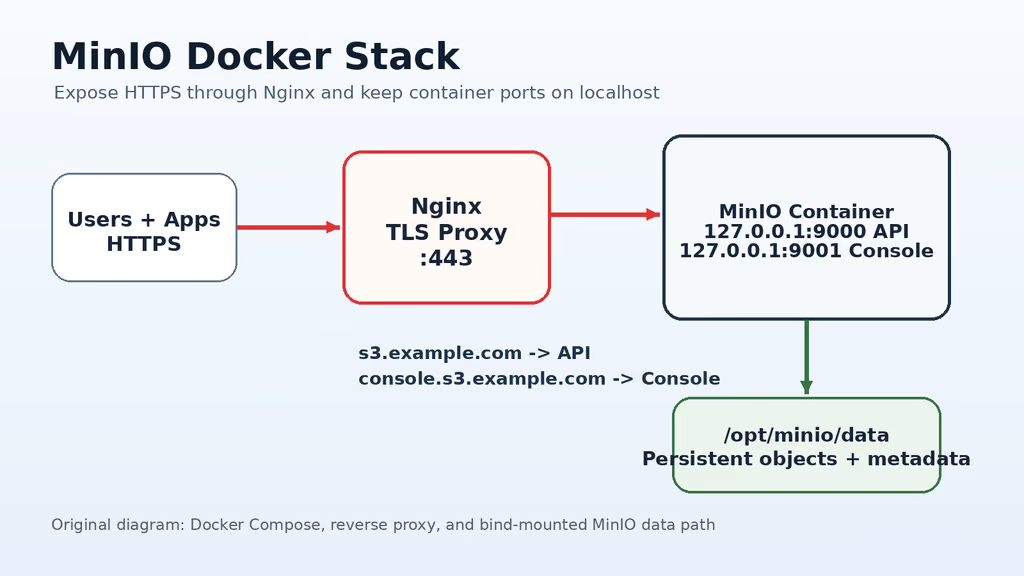
Caption: Nginx on 443 for API and console; MinIO stays on localhost with /opt/minio/data.
5. Configure Nginx for the S3 API
/etc/nginx/sites-available/s3.example.com:
server {
    listen 80;
    listen [::]:80;
    server_name s3.example.com;

    client_max_body_size 0;
    proxy_buffering off;

    location / {
        proxy_http_version 1.1;
        proxy_set_header Host $host;
        proxy_set_header X-Real-IP $remote_addr;
        proxy_set_header X-Forwarded-For $proxy_add_x_forwarded_for;
        proxy_set_header X-Forwarded-Proto $scheme;
        proxy_pass http://127.0.0.1:9000;
    }
}
6. Configure Nginx for the MinIO Console
/etc/nginx/sites-available/console.s3.example.com:
server {
    listen 80;
    listen [::]:80;
    server_name console.s3.example.com;

    location / {
        proxy_http_version 1.1;
        proxy_set_header Host $host;
        proxy_set_header X-Real-IP $remote_addr;
        proxy_set_header X-Forwarded-For $proxy_add_x_forwarded_for;
        proxy_set_header X-Forwarded-Proto $scheme;
        proxy_set_header Upgrade $http_upgrade;
        proxy_set_header Connection "upgrade";
        proxy_pass http://127.0.0.1:9001;
    }
}
sudo ln -s /etc/nginx/sites-available/s3.example.com /etc/nginx/sites-enabled/
sudo ln -s /etc/nginx/sites-available/console.s3.example.com /etc/nginx/sites-enabled/
sudo nginx -t
sudo systemctl reload nginx
sudo certbot --nginx -d s3.example.com -d console.s3.example.com
Then https://console.s3.example.com with root credentials from .env.
Configuration
Install and Configure the MinIO Client
curl --progress-bar -L https://dl.min.io/client/mc/release/linux-amd64/mc \
  --create-dirs \
  -o "$HOME/minio-binaries/mc"
chmod +x "$HOME/minio-binaries/mc"
sudo install -m 0755 "$HOME/minio-binaries/mc" /usr/local/bin/mc
mc --version
cd /opt/minio
set -a
. ./.env
set +a

mc alias set local https://s3.example.com "$MINIO_ROOT_USER" "$MINIO_ROOT_PASSWORD"
mc admin info local
If mc admin info local fails: DNS, HTTPS, Nginx logs, root keys, container still up.
Create a Bucket and Enable Versioning
mc mb local/app-backups
mc version enable local/app-backups
mc ls local
Versioning saves me from a bad overwrite. It also fills the disk if I never look at mc du.
Create a Least-Privilege Application User
cd /opt/minio
cat > app-backups-rw.json <<'EOF'
{
  "Version": "2012-10-17",
  "Statement": [
    {
      "Effect": "Allow",
      "Action": [
        "s3:GetBucketLocation",
        "s3:ListBucket",
        "s3:ListBucketMultipartUploads"
      ],
      "Resource": ["arn:aws:s3:::app-backups"]
    },
    {
      "Effect": "Allow",
      "Action": [
        "s3:AbortMultipartUpload",
        "s3:DeleteObject",
        "s3:GetObject",
        "s3:ListMultipartUploadParts",
        "s3:PutObject"
      ],
      "Resource": ["arn:aws:s3:::app-backups/*"]
    }
  ]
}
EOF

APP_SECRET="$(openssl rand -base64 32 | tr -d '\n')"
printf 'Application access key: app-backups\n'
printf 'Application secret key: %s\n' "$APP_SECRET"

mc admin user add local app-backups "$APP_SECRET"
mc admin policy create local app-backups-rw app-backups-rw.json
mc admin policy attach local app-backups-rw --user app-backups
Store the secret immediately. Apps typically need:
S3_ENDPOINT=https://s3.example.com
S3_REGION=us-east-1
S3_BUCKET=app-backups
S3_ACCESS_KEY=app-backups
S3_SECRET_KEY=paste-the-generated-secret
S3_PATH_STYLE_ENDPOINT=true
Path-style matters on self-hosted MinIO when I do not have wildcard TLS and bucket subdomains.
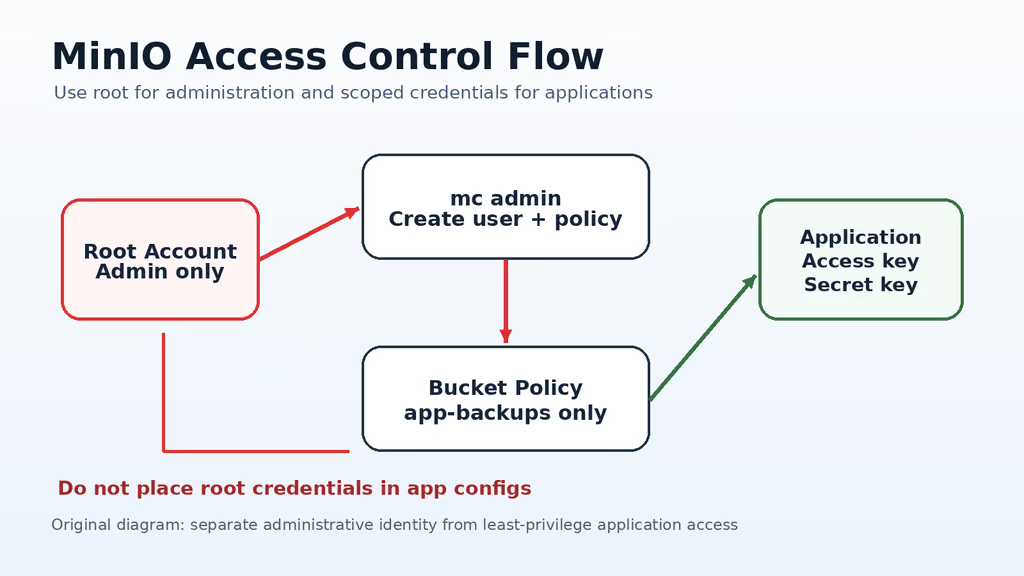
Caption: Apps get a scoped user. Root stays in the password manager.
Usage
printf "hello minio\n" > /tmp/minio-test.txt
mc cp /tmp/minio-test.txt local/app-backups/healthchecks/minio-test.txt
mc stat local/app-backups/healthchecks/minio-test.txt
mc cp local/app-backups/healthchecks/minio-test.txt /tmp/minio-test-download.txt
diff /tmp/minio-test.txt /tmp/minio-test-download.txt
mc rm local/app-backups/healthchecks/minio-test.txt
Then I upload a small file through the real app and confirm it in the console and mc ls.
Checklist I actually run:
docker compose psis up.mc admin info localreturns info.mc ls local/app-backupslists the bucket.- Upload/download round trip works.
- Nginx logs show HTTPS, not public 9000/9001.
- Disk has room for versions and backups.
Screenshots and Visuals
Original diagrams: hero, Docker/Nginx path, root vs app keys, local archive vs off-server copy.
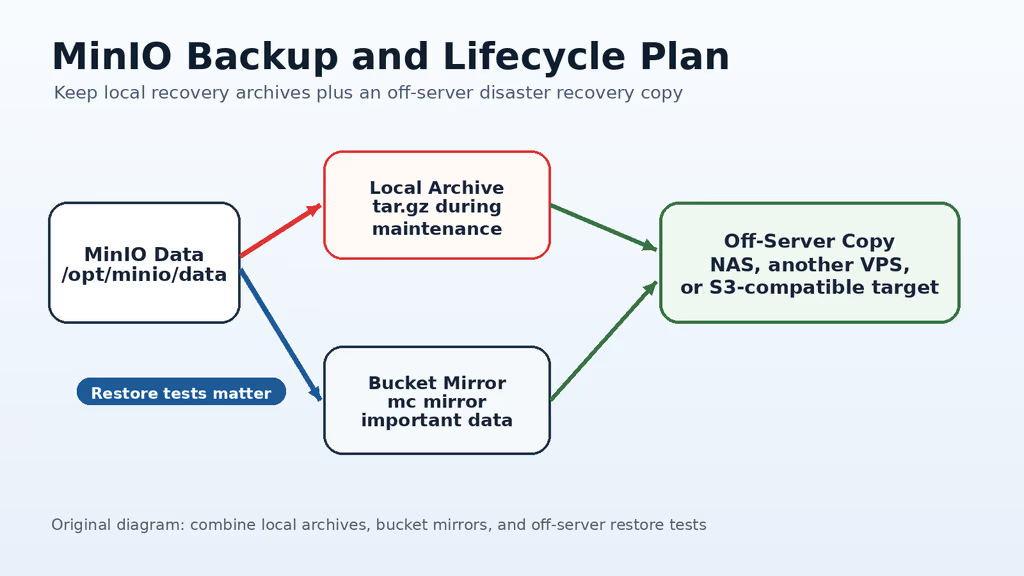
Caption: Local tar is for a bad Tuesday. Off-server copy is for a dead VPS.
Where it broke
On a lab Ubuntu 24.04 box this is the failure MinIO-behind-Nginx is famous for.
1. Console redirects to the wrong URL
I opened https://console.s3.example.com and landed on localhost, HTTP, or the API host. Docs-shaped fix:
MINIO_BROWSER_REDIRECT_URL=https://console.s3.example.com
Restart:
cd /opt/minio
docker compose up -d
Nginx on the console vhost must send X-Forwarded-Proto. Without it, MinIO thinks the scheme is http and the redirect loop starts.
2. S3 clients fail with signature errors
mc worked; the Laravel (or other) client did not. Endpoint must be exactly https://s3.example.com, path-style on, clocks in sync, region what the app expects (us-east-1 is what I put in the example env). Using root keys in the app when the policy is on app-backups is a different failure — I test with the same access key the app has.
Large uploads dying: client_max_body_size 0 on the API vhost, then Nginx error log for timeouts. Disk growth: mc du local/app-backups and versioning. Empty data after a restart: Compose not run from /opt/minio, so ./data:/data is the wrong directory.
Troubleshooting
- Cert renewals break the vhosts:
sudo nginx -t, reload, confirm both hostnames are still in the server blocks. mc alias setworks, apps fail: app keys + bucket policy + object path, not the root alias.
Scaling, Securing, and Next Steps
First limit is usually disk durability, not CPU. I watch disk health, free space, I/O wait, backup success. If MinIO becomes the dependency for everything, I want dedicated disks or a distributed setup — not a bigger random volume on the same VPS.
Mirror a bucket off-box:
mc alias set backup https://s3.backup-provider.example ACCESS_KEY SECRET_KEY
mc mirror --overwrite local/app-backups backup/app-backups
Local archive (brief stop):
cd /opt/minio
docker compose stop minio
tar -C /opt/minio/data -czf "/opt/minio/backups/minio-data-$(date +%F).tar.gz" .
docker compose up -d
rsync -avh /opt/minio/backups/ backup-user@backup.example.com:/srv/backups/minio/
After it works:
- Console behind VPN or extra auth.
- One bucket + one user per app.
- Rotate keys when people or CI change.
- Monitor disk, container, Nginx, certs.
- Pin a MinIO image tag.
- Restore into a second MinIO before I call backups "done."
Conclusion
MinIO is running on my Ubuntu 24.04 VPS: API at https://s3.example.com, console at https://console.s3.example.com, ports on localhost, versioned app-backups bucket, scoped user for apps. Root keys stay in .env and a password manager.
Next I would connect one non-critical app, restore a data tarball once, and document the exact mc alias + policy steps. The console redirect was MINIO_BROWSER_REDIRECT_URL and forwarded proto — not "S3 is hard."
Did you hit the same wall?
I got stuck on the MinIO console redirecting to the wrong URL until MINIO_BROWSER_REDIRECT_URL and X-Forwarded-Proto matched HTTPS. Did you hit the same thing, or a different one — signature errors, path-style, client_max_body_size? Tell me in the comments. I read them.
Need this done on your server?
I deploy and harden Laravel/CodeCanyon apps on cPanel or VPS, and offer monthly Server Watch retainers. Hire for deploy · Care plan