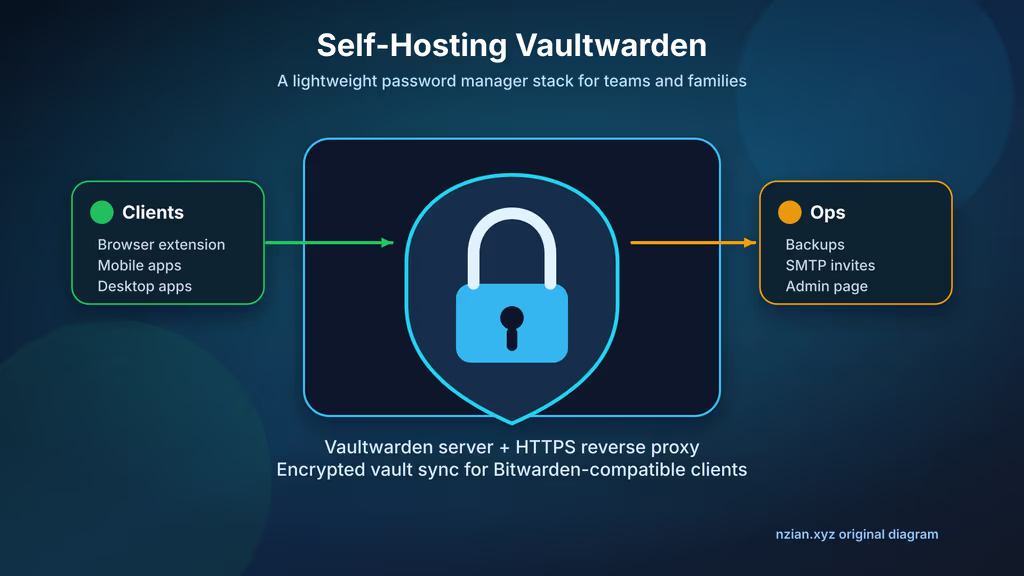
Caption: Vaultwarden on my VPS — Bitwarden apps sync to my /data directory, not a vendor cloud.
Introduction
I wanted family and small-team passwords on a box I patch, with the Bitwarden apps I already use. Vaultwarden is the unofficial Rust server that speaks that protocol without the official Bitwarden's resource appetite. SQLite by default, one Compose service, Nginx in front.
This is critical infrastructure even with three users. I treat TLS, backups, and restores like I would for production MySQL.
On Ubuntu 24.04 the install is famous for Nginx 502 when the container is not bound where the vhost thinks (127.0.0.1:8080 in this Compose file). The other wall: Bitwarden clients that still point at bitwarden.com because I logged in before setting the self-hosted URL. I quoted those from the wiki-style troubleshooting already in this post, bound the port to localhost, and set DOMAIN=https://vaultwarden.example.com before any real vault items.
Public signups stay off. Invites go through SMTP.
Why I picked Vaultwarden
- Small VPS is enough; I was not going to run the full official stack for a household.
- Official Bitwarden apps and extensions, custom server URL.
- One container, one
./datadirectory, a reverse proxy. - Vault metadata and attachments stay on my disk, under my backup policy.
- Organizations and collections for shared logins.
- SMTP for invites so I never turn public registration on.
If I needed a vendor contract and compliance paperwork, I would look at official Bitwarden. I needed a lean vault I can restore.
Prerequisites
Hardware:
- 1 CPU / 1 GB RAM for personal or family
- 2 CPU / 2 GB if attachments and other containers share the box
- 10 GB free to start, plus attachments and backups
- SSD — SQLite and attachments do not belong on a dying spinning disk
Software and accounts:
- Ubuntu 24.04 LTS with sudo
- Domain such as
vaultwarden.example.com - DNS
AorAAAA - Docker + Compose
- Nginx + Certbot
- SMTP for invites
- A second machine to test restores
Security notes:
- SSH keys; sudo limited.
- Only 80/443 public. Container port stays off UFW.
- Signups off after first setup; invite on purpose.
- Two-step login on every account.
- Back up all of
/dataand restore once before storing real secrets.
sudo apt update
sudo apt upgrade -y
sudo apt install -y ca-certificates curl gnupg git ufw nginx certbot python3-certbot-nginx

sudo ufw allow OpenSSH
sudo ufw allow 80/tcp
sudo ufw allow 443/tcp
sudo ufw enable
sudo ufw status
Installation Guide
Compose + official vaultwarden/server image. Container on 127.0.0.1:8080; Nginx terminates TLS.
1. Install Docker Engine
curl -fsSL https://get.docker.com | sudo sh
sudo usermod -aG docker "$USER"
newgrp docker

docker --version
docker compose version
If newgrp docker does not stick, I log out and back in.
2. Create the Project Directory
sudo mkdir -p /opt/vaultwarden/data
sudo chown -R "$USER":"$USER" /opt/vaultwarden
cd /opt/vaultwarden
chmod 700 data
data is the service: SQLite, attachments, icons, sends, crypto files. Every backup includes it.
3. Generate an Admin Token and Environment File
Long random token, password manager, not Slack.
cd /opt/vaultwarden
ADMIN_TOKEN_VALUE="$(openssl rand -base64 48 | tr -d '\n')"
read -rsp "SMTP password: " SMTP_PASSWORD_VALUE
echo

cat > .env <<EOF
DOMAIN=https://vaultwarden.example.com
ADMIN_TOKEN=${ADMIN_TOKEN_VALUE}
SIGNUPS_ALLOWED=false
INVITATIONS_ALLOWED=true
SMTP_HOST=smtp.example.com
SMTP_FROM=vaultwarden@example.com
SMTP_PORT=587
SMTP_SECURITY=starttls
SMTP_USERNAME=vaultwarden@example.com
SMTP_PASSWORD=${SMTP_PASSWORD_VALUE}
LOG_LEVEL=warn
EOF

chmod 600 .env
For a harder setup I hash the admin token with Argon2id as the Vaultwarden admin-page docs describe, then put the hash in ADMIN_TOKEN. The random token is fine for first boot; a hash is safer if .env ever leaks.
4. Create the Docker Compose File
compose.yaml:
services:
  vaultwarden:
    image: vaultwarden/server:latest
    container_name: vaultwarden
    restart: unless-stopped
    env_file:
      - .env
    volumes:
      - ./data:/data
    ports:
      - "127.0.0.1:8080:80"
cd /opt/vaultwarden
docker compose pull
docker compose up -d
docker compose ps
docker compose logs --since=2m vaultwarden
Local 8080 only. I do not open it in the firewall.
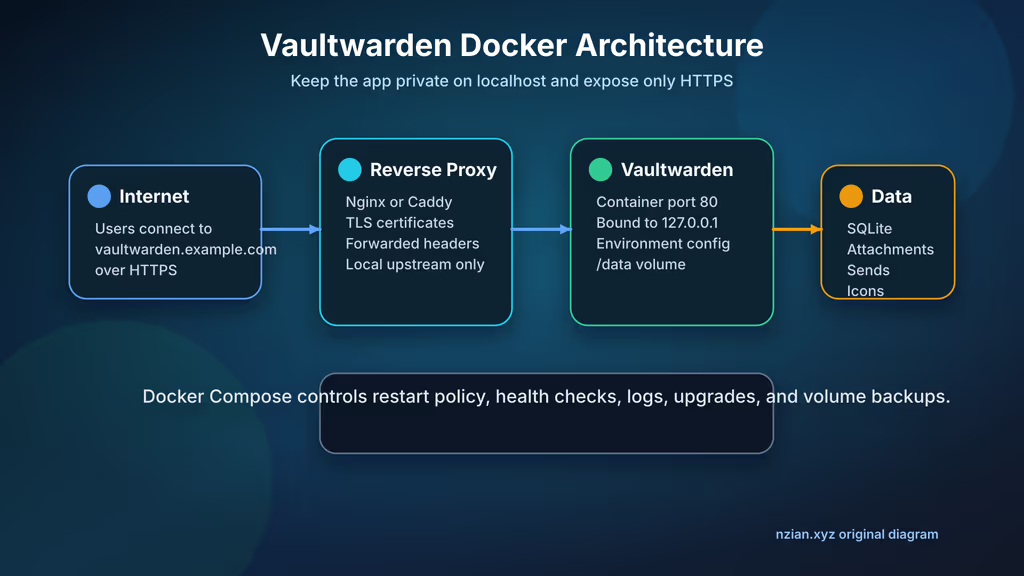
Caption: Nginx on 443; Vaultwarden on localhost; /opt/vaultwarden/data is the vault.
5. Configure Nginx and HTTPS
/etc/nginx/sites-available/vaultwarden.example.com:
server {
    listen 80;
    listen [::]:80;
    server_name vaultwarden.example.com;

    client_max_body_size 128M;

    location / {
        proxy_http_version 1.1;
        proxy_set_header Host $host;
        proxy_set_header X-Real-IP $remote_addr;
        proxy_set_header X-Forwarded-For $proxy_add_x_forwarded_for;
        proxy_set_header X-Forwarded-Proto $scheme;
        proxy_set_header Upgrade $http_upgrade;
        proxy_set_header Connection "upgrade";
        proxy_pass http://127.0.0.1:8080;
    }
}
sudo ln -s /etc/nginx/sites-available/vaultwarden.example.com /etc/nginx/sites-enabled/
sudo nginx -t
sudo systemctl reload nginx
sudo certbot --nginx -d vaultwarden.example.com
After Certbot, https://vaultwarden.example.com. First account, signups stay off, more users via admin invites.
Configuration
Domain and Proxy Awareness
DOMAIN is the HTTPS URL I type into Bitwarden clients. After a change:
cd /opt/vaultwarden
nano .env
docker compose up -d
docker compose logs --since=1m vaultwarden
Nginx must send Host, X-Real-IP, X-Forwarded-For, X-Forwarded-Proto. Without them, login and admin links behave like the service is still localhost.
SMTP for Invites and Account Emails
Vaultwarden runs without mail; invite-only onboarding does not. After .env edits:
cd /opt/vaultwarden
docker compose up -d
docker compose logs --since=5m vaultwarden
No mail: host, port, TLS mode, user, password, SMTP_FROM, SPF/DKIM/DMARC. Providers reject From domains they have not verified.
Admin Page
https://vaultwarden.example.com/admin
Admin token from the password manager. Before invites:
- Public registration off.
- Invitations on only if I will use email.
- Attachment limits I can actually store.
- Who can create organizations.
- Notes in my runbook, not only in the UI.
I prefer /admin behind a VPN or extra proxy rule, not on every public IP.
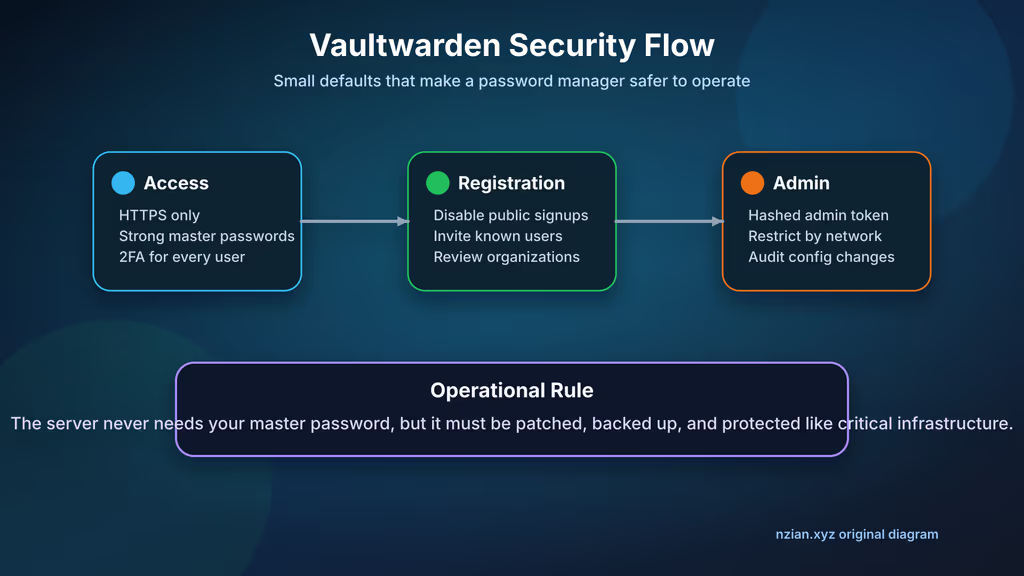
Caption: HTTPS, closed signups, 2FA on accounts, admin token not in chat.
Usage
- Bitwarden extension, desktop, or mobile.
- Self-hosted server before login.
https://vaultwarden.example.comas the URL.- Create or accept invite.
- Two-step login in account settings.
- Import only after I reviewed the export file locally.
- Shared collections for family/team — not passwords in a group chat.
Before I trust it:
- Test item syncs to a second client.
- Small attachment appears under
data/attachments. - Invite email arrives.
- Organization collection shares one test item.
- Private window login.
- Container restart, clients still sync.
I migrate real passwords in batches. Old manager stays until the important accounts work from the new clients.
Screenshots and Visuals
Original diagrams only. Internal runbook screenshots: admin (secrets blurred), SMTP test, client server URL, collections, backup output. I do not publish vault metadata.
Where it broke
On a lab Ubuntu 24.04 box this is the failure Vaultwarden's Docker + Nginx setup is famous for.
1. Nginx 502 Bad Gateway
The vhost was up; Vaultwarden was not answering http://127.0.0.1:8080.
cd /opt/vaultwarden
docker compose ps
docker compose logs --since=2m vaultwarden
Fix: container healthy, ports still "127.0.0.1:8080:80", Nginx proxy_pass http://127.0.0.1:8080. If I published 8080:80 on all interfaces, that is a different (worse) mistake — I bind localhost only.
2. Bitwarden client cannot find the server
Extension still talked to the official cloud, or I omitted https://. Wiki-style fix: set the custom server URL before login, full HTTPS URL, no extra path. DOMAIN in .env must match that URL. Insecure-origin warnings mean Certbot did not finish or DOMAIN still starts with http://.
Uploads failing is often Nginx client_max_body_size (I set 128M) or a full disk under /opt/vaultwarden/data. Admin token "wrong" is usually a newline or quote in .env — I fix the file and docker compose up -d.
Troubleshooting
- Invites not delivered: SMTP and verified sender, then spam folder.
- Disk filling: attachments, sends, old backups.
- Upgrade: release notes, backup, restore test, then pull the image.
Scaling, Securing, and Next Steps
Backups
Whole data directory, not only db.sqlite3.
cd /opt/vaultwarden
docker compose stop
sudo tar -czf /root/vaultwarden-backup-$(date +%F).tar.gz compose.yaml .env data
docker compose start
sudo sha256sum /root/vaultwarden-backup-$(date +%F).tar.gz
Encrypt it, keep an off-site copy, limit who can fetch it.
Restore on a separate host:
sudo mkdir -p /opt/vaultwarden
sudo tar -xzf /root/vaultwarden-backup-2026-07-01.tar.gz -C /opt/vaultwarden
sudo chown -R "$USER":"$USER" /opt/vaultwarden
cd /opt/vaultwarden
docker compose up -d
docker compose logs --since=2m vaultwarden
Login, attachments, client sync. Then the backup plan is real.
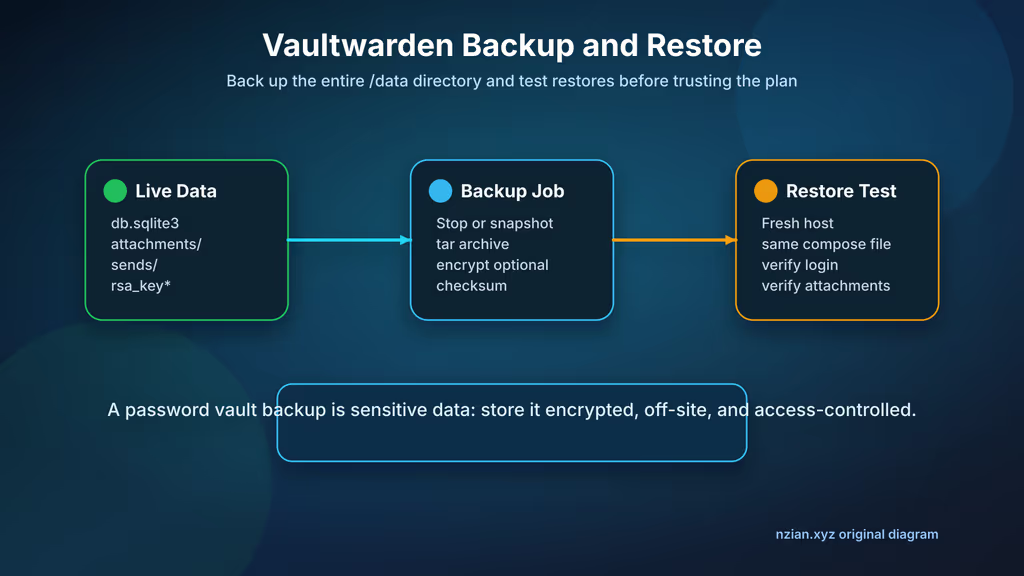
Caption: /data archive, encrypted copy off-box, restore rehearsal — that is the vault.
Upgrades
cd /opt/vaultwarden
docker compose pull
docker compose up -d
docker compose logs --since=10m vaultwarden
I keep the previous image tag in notes so I can roll back. Pin a tag when this vault is the only copy of credentials.
Hardening
- 2FA on all accounts.
- Signups off; review pending invites.
- Hashed admin token; network-restrict
/adminif I can. - Watch HTTPS and container restarts.
- Patch Ubuntu, Docker, Nginx, Vaultwarden.
- Admin token, SMTP password, backup key in separate records.
- Restore steps where another admin can find them.
Conclusion
Vaultwarden is running on my Ubuntu 24.04 VPS: Compose under /opt/vaultwarden, Nginx/Certbot on the hostname, container on localhost:8080, signups off, /data in the backup tarball. Bitwarden apps sync to my server.
Next I would restore that archive on a spare box, turn on 2FA for every account, and pin an image tag. The 502 was the proxy; the client wall was the self-hosted URL I set too late.
Did you hit the same wall?
I got stuck on Nginx 502 Bad Gateway because Vaultwarden was not answering 127.0.0.1:8080. Did you hit the same thing, or a different one — Bitwarden still pointing at the cloud, SMTP invites that never arrived, a quoted ADMIN_TOKEN in .env? Tell me in the comments. I read them.
Need this done on your server?
I deploy and harden Laravel/CodeCanyon apps on cPanel or VPS, and offer monthly Server Watch retainers. Hire for deploy · Care plan