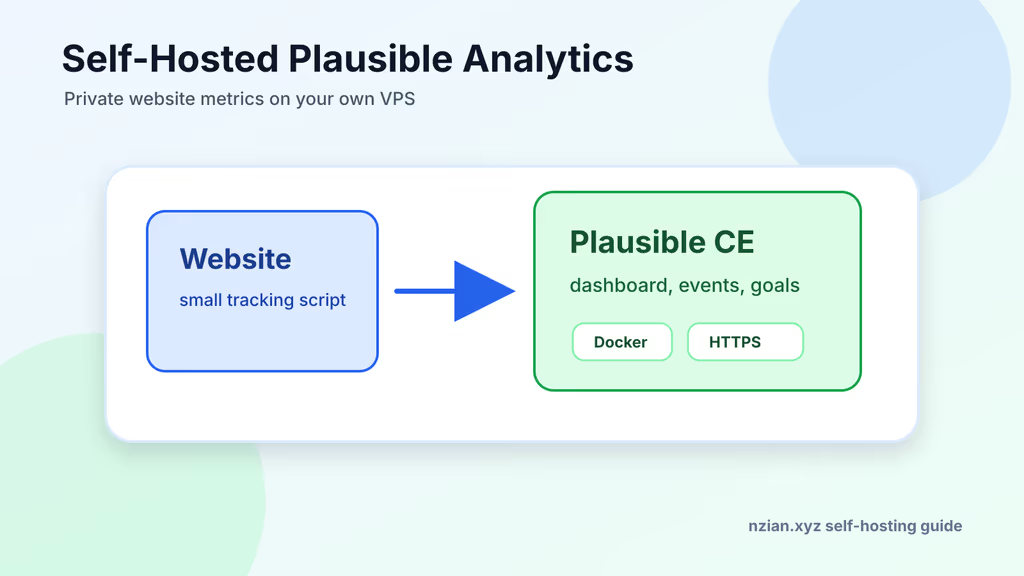
Caption: Plausible Community Edition on my VPS — traffic numbers stay on my disk, not in an ad network.
Introduction
I wanted page views, referrers, and goals without feeding Google Analytics another profile of my readers. Plausible Community Edition is the AGPL stack I put on Ubuntu 24.04: the app, PostgreSQL, and ClickHouse, all from the official Compose repo.
On a fresh box this install is famous for two walls. First, TLS never issues if BASE_URL is not the real public hostname or ports 80/443 are not reachable. Second, ClickHouse will flap if the CPU lacks SSE 4.2 (or NEON on ARM) or the VPS is starved for RAM. I quoted those errors from the logs, fixed DNS and ports, and then the dashboard loaded.
I own the data. I also own upgrades, backups, and email. That is the trade.
Why I picked Plausible
- No cookies for the usual analytics case — that was the point of leaving GA.
- A dashboard I can read without hunting through ten report types.
- I can read the code and keep events in a region I choose.
- The script is small compared with the GA bundle I used to paste.
- Official Compose: PostgreSQL + ClickHouse + Plausible, tagged releases.
If I did not want to run a VPS, I would pay for Plausible Cloud. I wanted the data on my machine.
Prerequisites
Hardware:
- 2 CPU cores
- 2 GB RAM minimum, 4 GB if the site is busy
- 20 GB free to start, plus room for ClickHouse growth
- CPU with SSE 4.2 or NEON — ClickHouse will not stay up without it
Software and accounts:
- Ubuntu 24.04 LTS with sudo
- Docker Engine and Compose plugin
- A domain such as
plausible.example.com - DNS
AorAAAAat the VPS - SMTP if I want invites, resets, and verification mail
Security notes:
- SSH keys; password login off.
- HTTPS before I add production sites.
- Disable registration after the first admin.
- Back up PostgreSQL and ClickHouse before upgrades.
Updated host:
sudo apt update
sudo apt upgrade -y
sudo apt install -y ca-certificates curl git openssl ufw
Install Docker using Docker's convenience script:
curl -fsSL https://get.docker.com | sudo sh
sudo usermod -aG docker "$USER"
newgrp docker
docker --version
docker compose version
If I use ufw, SSH plus web:
sudo ufw allow OpenSSH
sudo ufw allow 80/tcp
sudo ufw allow 443/tcp
sudo ufw enable
sudo ufw status
Installation Guide
I clone a tagged Community Edition branch so I can reproduce the install.
1. Clone Plausible Community Edition
sudo mkdir -p /opt
sudo chown "$USER":"$USER" /opt
cd /opt
git clone -b v3.2.1 --single-branch https://github.com/plausible/community-edition plausible-ce
cd /opt/plausible-ce
The directory should contain the Compose file and ClickHouse configuration:
ls -1
Expected entries include:
LICENSE
README.md
clickhouse
compose.yml
2. Create the Environment File
BASE_URL must match the domain I will actually open in a browser.
cd /opt/plausible-ce
touch .env
echo "BASE_URL=https://plausible.example.com" >> .env
echo "SECRET_KEY_BASE=$(openssl rand -base64 48)" >> .env
Review the file:
cat .env
BASE_URL=https://plausible.example.com
SECRET_KEY_BASE=replace-with-the-generated-secret-from-your-server
I generate SECRET_KEY_BASE on the server. I do not paste the example secret into production.
3. Expose Plausible on HTTP and HTTPS
The official stack can bind 80 and 443 itself. I add those ports to .env and an override:
echo "HTTP_PORT=80" >> .env
echo "HTTPS_PORT=443" >> .env

cat > compose.override.yml <<'EOF'
services:
  plausible:
    ports:
      - 80:80
      - 443:443
EOF
When BASE_URL is https:// and 80/443 are reachable, Plausible can request certificates. DNS has to be correct before I start the stack.
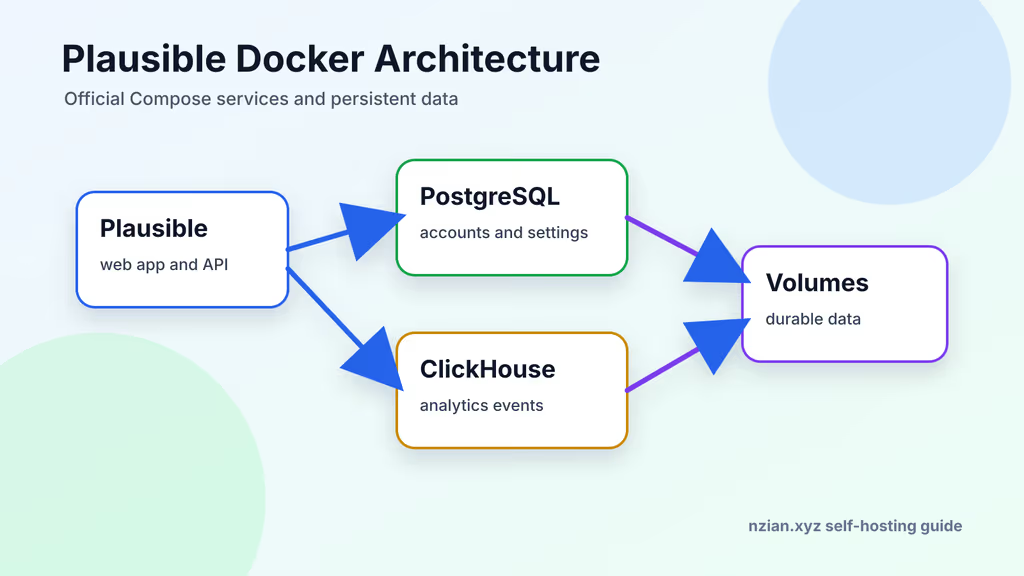
Caption: Compose runs Plausible, PostgreSQL, and ClickHouse with persistent volumes — that is the whole brain.
4. Start the Stack
docker compose up -d
docker compose ps
First boot logs:
docker compose logs -f plausible
The first start runs database creation and migrations before the web app listens.
5. Create the First User
Open:
https://plausible.example.com
I create the first admin in the UI, then close registration:
echo "DISABLE_REGISTRATION=true" >> .env
docker compose up -d
SMTP before I invite anyone else.
Configuration
Email Delivery
Password resets and invites need mail. Typical SMTP block:
MAILER_ADAPTER=Smtp
MAILER_EMAIL=analytics@example.com
MAILER_NAME=Plausible Analytics
SMTP_HOST_ADDR=smtp.example.com
SMTP_HOST_PORT=587
SMTP_USER_NAME=analytics@example.com
SMTP_USER_PWD=use-a-real-smtp-password
SMTP_HOST_SSL_ENABLED=false
Add real values to /opt/plausible-ce/.env, then:
docker compose up -d
docker compose logs --since=5m plausible
Port 587 with STARTTLS usually wants SMTP_HOST_SSL_ENABLED=false. Port 465 implicit TLS is provider-specific — I test it, I do not guess.
Reverse Proxy Option
If Caddy, Nginx Proxy Manager, or Traefik already owns 80/443, I do not bind Plausible to those ports. Local port + proxy:
services:
  plausible:
    ports:
      - 127.0.0.1:8000:80
Caddy:
plausible.example.com {
    reverse_proxy 127.0.0.1:8000
}
sudo systemctl reload caddy
Keep BASE_URL=https://plausible.example.com.
Database Volumes
Official Compose creates volumes for PostgreSQL, ClickHouse, ClickHouse logs, and app data:
docker volume ls | grep plausible
I do not delete those unless I intend to wipe analytics.
Usage
Add Your First Website
Add website, domain like www.example.com. Snippet:
<script defer data-domain="www.example.com" src="https://plausible.example.com/js/script.js"></script>
In a Laravel Blade layout, before </head>:
<head>
    <!-- other meta tags -->
    <script defer data-domain="www.example.com" src="https://plausible.example.com/js/script.js"></script>
</head>
Same snippet in a static base template. Then I hit a page from a private window or another network.
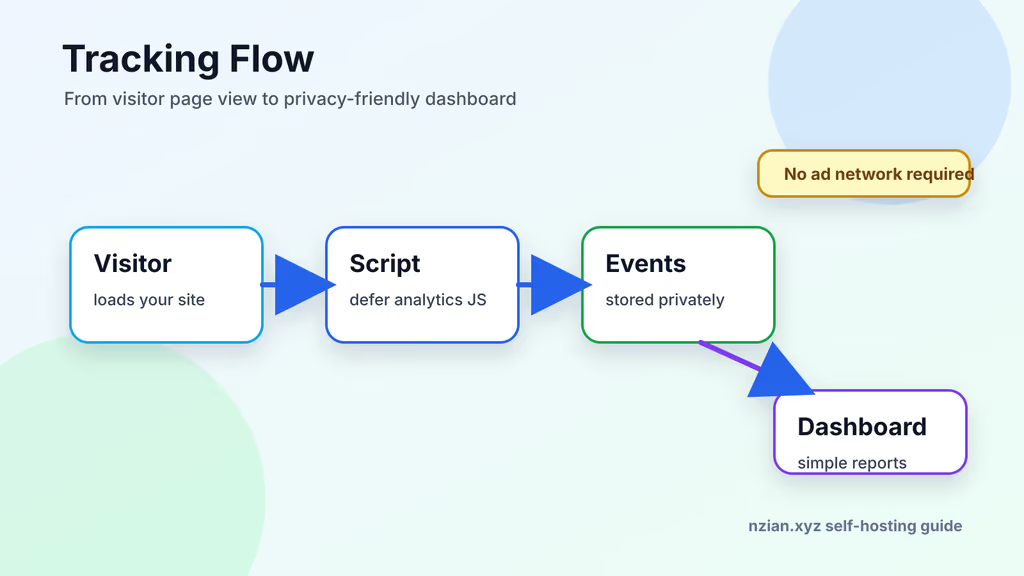
Caption: The snippet on my site talks to my Plausible domain — not a third-party analytics vendor.
Verify Tracking
DevTools → Network, filter script.js or the Plausible host. Then click a few pages and go back to the dashboard.
- Script returns HTTP 200.
- Dashboard shows a visitor or a page view.
data-domainmatches the site I added.- I am not testing from a browser that blocks the request.
- No certificate warnings on HTTPS.
Goals and Campaigns
I add goals for the actions I care about: contact form, newsletter, checkout. Page views alone are not why I installed this.
UTM example:
https://www.example.com/pricing?utm_source=newsletter&utm_medium=email&utm_campaign=summer-launch
Plausible groups source and campaign so I can see which links actually send people.
Screenshots and Visuals
Diagrams here are originals for the deploy path. After install I screenshot my own dashboard for a runbook — blurred domains and numbers. I do not paste random product shots from the web.
Where it broke
On a fresh Ubuntu 24.04 VPS this stack is famous for dying after docker compose up -d looks fine.
1. TLS never issues
The site would not load on HTTPS. docker compose logs plausible and the usual ACME complaints: wrong BASE_URL, DNS still pointing at the old IP, or UFW/cloud firewall blocking 80/443 so HTTP-01 cannot complete.
Fix I used:
BASE_URL=https://plausible.example.com(real hostname,https://).- DNS A/AAAA at this VPS, wait for it to resolve from off-box.
- Ports 80 and 443 open. Then:
docker compose up -d
docker compose logs -f plausible
2. ClickHouse restarts in a loop
ClickHouse would not stay healthy. Official troubleshooting: CPU without SSE 4.2 (or NEON on ARM), or not enough RAM. I confirmed CPU flags and gave the VPS more memory. If the host is a tiny burstable instance, this is the failure I expect.
No page views after a green dashboard is usually the snippet domain mismatch or a content blocker on my test browser — not ClickHouse.
Troubleshooting
- First boot looks hung: migrations run before the web server. I wait and watch
docker compose logs plausible. - Password reset mail missing: SMTP host, port, user, password, From address, provider "insecure apps" rules.
- Registration still open:
DISABLE_REGISTRATION=truein.env, thendocker compose up -d. - Disk climbs fast: ClickHouse events grow quicker than app files. I watch retention and backup size.
Scaling, Securing, and Next Steps
Backups
Stop the app (or pick a window), archive volumes:
cd /opt/plausible-ce
docker compose stop plausible
sudo tar -czf /root/plausible-volumes-$(date +%F).tar.gz /var/lib/docker/volumes
docker compose start plausible
That tarball can include every Docker volume on the host. If this VPS runs other stacks, I use a tighter backup or a snapshot. I test restore on another box before I trust it.
Upgrades
Release notes first. Pattern:
cd /opt/plausible-ce
git fetch --tags
git checkout v3.2.1
docker compose pull
docker compose up -d
docker compose logs --since=10m plausible
Replace v3.2.1 with the tag I actually reviewed. Backup, upgrade, then check the dashboard and the tracking script.
Monitoring
From outside the server:
- HTTPS on
https://plausible.example.com - Disk on the volume filesystem
- Memory and container restarts
- Backup job
- Certificate renewal
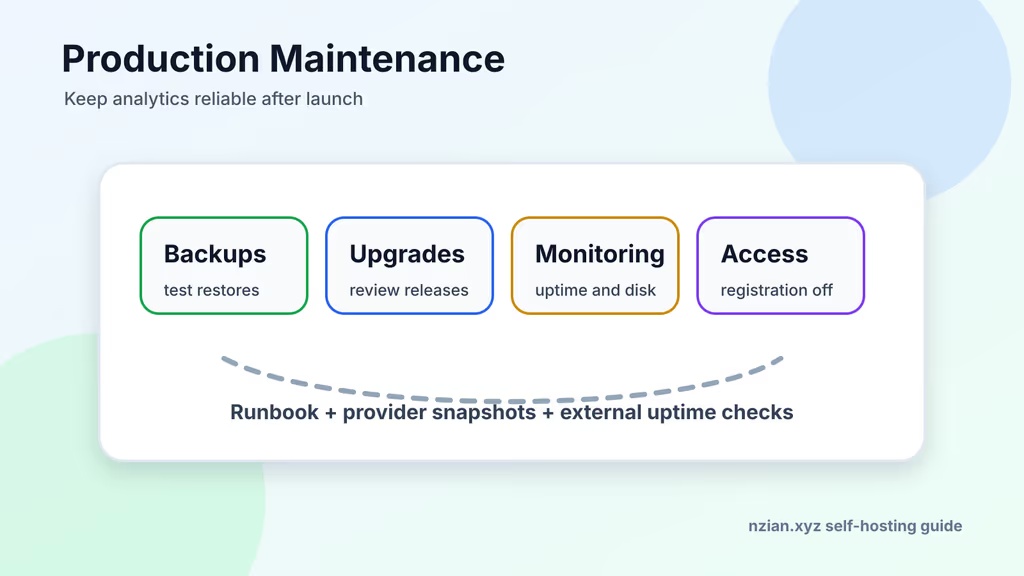
Caption: After the dashboard is green I still owe backups, upgrades, and closed registration.
Hardening
- Keep
DISABLE_REGISTRATION=true. - Strong passwords in a password manager.
- SSH keys only.
- Patch Docker and Ubuntu.
.envis a secret file.- Provider firewall if the VPS panel has one.
Conclusion
Plausible CE is running on my Ubuntu 24.04 VPS: Compose under /opt/plausible-ce, HTTPS on my analytics domain, registration closed, snippet on the site I actually wanted to measure. Page views stay in my PostgreSQL/ClickHouse volumes.
Next I would wire SMTP for real, restore a volume archive once, and pin the next tag from the release notes instead of living on whatever I cloned. The TLS wall was DNS and ports; ClickHouse was the CPU/RAM footnote I almost skipped.
Did you hit the same wall?
I got stuck on TLS certificate issuance because BASE_URL and ports 80/443 did not match the public DNS. Did you hit the same thing, or a different one — ClickHouse restarting, no page views, SMTP that never sent? Tell me in the comments. I read them.
Need this done on your server?
I deploy and harden Laravel/CodeCanyon apps on cPanel or VPS, and offer monthly Server Watch retainers. Hire for deploy · Care plan