Caption: Penpot on my VPS — design files stay in my Docker volumes, not in a vendor cloud.
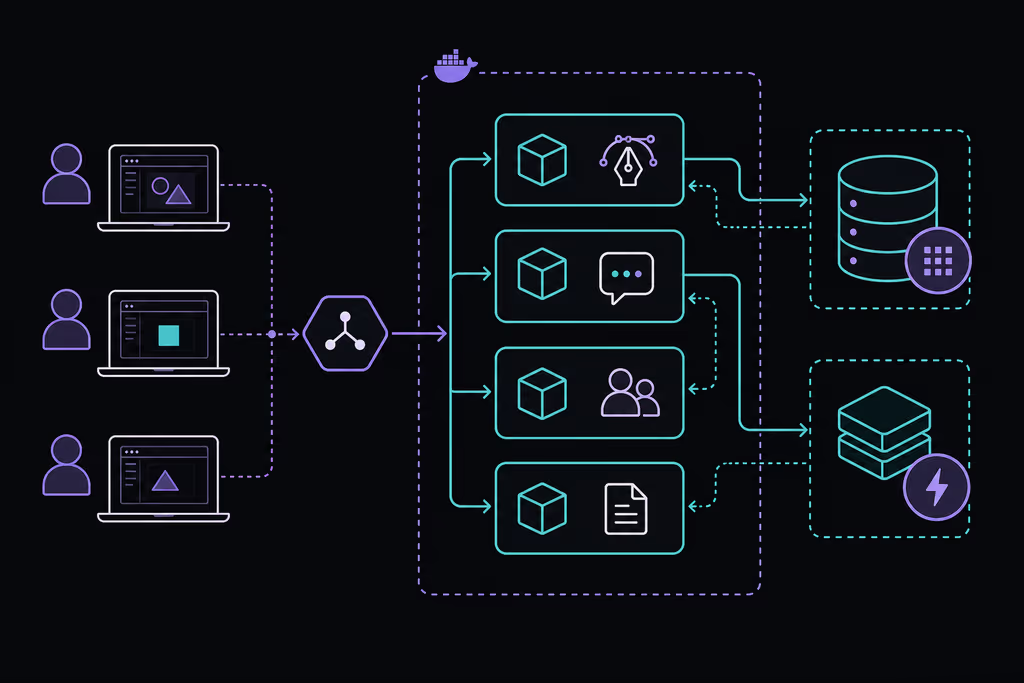
Caption: Compose runs Penpot with PostgreSQL and Redis; Caddy terminates HTTPS in front.
Introduction
I wanted a browser design tool for client work under NDA — not another Figma seat that stores boards on someone else's disk. Penpot is SVG-native, real-time, and the official path is Docker Compose with PostgreSQL and Redis.
On a fresh Ubuntu 24.04 box this stack is famous for a blank page and websocket errors when PENPOT_PUBLIC_URI is not exactly the HTTPS URL people type. I set http:// in .env while Caddy served https://, and the editor never fully connected. Matching scheme + host (no surprise trailing slash) and proxying to port 9001 fixed it. A 502 after that is usually the frontend container not healthy yet, or Caddy pointing at the wrong port.
I lock registration after the first team accounts exist.
Why I picked Penpot
- MPL 2.0 — I can run it on my terms.
- Live cursors in the same file, which is what I actually needed for handoff.
- SVG stays closer to what Laravel/Vue frontends consume.
- Tokens and components so the design system does not live in a chat thread.
- Official images and Compose files I can pin and upgrade.
I outgrew desktop-only tools. I did not want a per-seat SaaS bill for every freelancer on a project.
Prerequisites
Hardware:
- 2+ CPU cores (4 if several people edit at once)
- 4 GB RAM minimum (8 GB for a team)
- 30 GB free disk (more for asset libraries)
- Ubuntu 24.04 LTS with sudo
Software & accounts:
- Docker Engine 24+ and Compose plugin
- Domain such as
penpot.example.com - DNS
Aat the VPS - SMTP (optional on day one; I want it before invites)
Security notes:
- SSH keys; password login off.
- TLS at the reverse proxy before I invite anyone.
- Disable open registration after admins exist.
- Back up PostgreSQL and asset volumes before upgrades.
sudo apt update && sudo apt upgrade -y
sudo apt install -y ca-certificates curl git ufw
curl -fsSL https://get.docker.com | sudo sh
sudo usermod -aG docker "$USER"
newgrp docker
Firewall:
sudo ufw allow OpenSSH
sudo ufw allow 80/tcp
sudo ufw allow 443/tcp
sudo ufw enable
Installation Guide
I use Penpot's maintained Compose files from GitHub, not a homemade container.
1. Download the Official Compose Stack
sudo mkdir -p /opt/penpot
sudo chown "$USER":"$USER" /opt/penpot
cd /opt/penpot
curl -LO https://raw.githubusercontent.com/penpot/penpot/main/docker/images/docker-compose.yaml
curl -LO https://raw.githubusercontent.com/penpot/penpot/main/docker/images/env.sample
cp env.sample .env
2. Configure Environment Variables
Edit .env with the public URL and mail:
PENPOT_PUBLIC_URI=https://penpot.example.com

# Example SMTP (adjust for your provider)
PENPOT_SMTP_ENABLED=true
PENPOT_SMTP_DEFAULT_FROM=noreply@example.com
PENPOT_SMTP_DEFAULT_REPLY_TO=support@example.com
PENPOT_SMTP_HOST=smtp.example.com
PENPOT_SMTP_PORT=587
PENPOT_SMTP_USERNAME=your-user
PENPOT_SMTP_PASSWORD=your-password
PENPOT_SMTP_TLS=true
PENPOT_SMTP_SSL=false

# Feature flags (adjust after first login)
PENPOT_FLAGS=enable-registration enable-login-with-password enable-smtp
PENPOT_PUBLIC_URI must be the exact HTTPS URL. Mismatch here is the websocket wall I hit.
3. Start Penpot
cd /opt/penpot
docker compose pull
docker compose up -d
docker compose ps
Frontend, backend, PostgreSQL, Redis, exporter. First boot can take a few minutes while databases initialize.
4. Put HTTPS in Front with Caddy
Official Compose exposes the app on localhost port 9001 by default — I verify with docker compose port penpot-frontend 80 if the file differs:
sudo apt install -y debian-keyring debian-archive-keyring apt-transport-https curl
curl -1sLf 'https://dl.cloudsmith.io/public/caddy/stable/gpg.key' | sudo gpg --dearmor -o /usr/share/keyrings/caddy-stable-archive-keyring.gpg
curl -1sLf 'https://dl.cloudsmith.io/public/caddy/stable/debian.deb.txt' | sudo tee /etc/apt/sources.list.d/caddy-stable.list
sudo apt update && sudo apt install -y caddy
/etc/caddy/Caddyfile:
penpot.example.com {
    reverse_proxy localhost:9001
}
sudo systemctl reload caddy
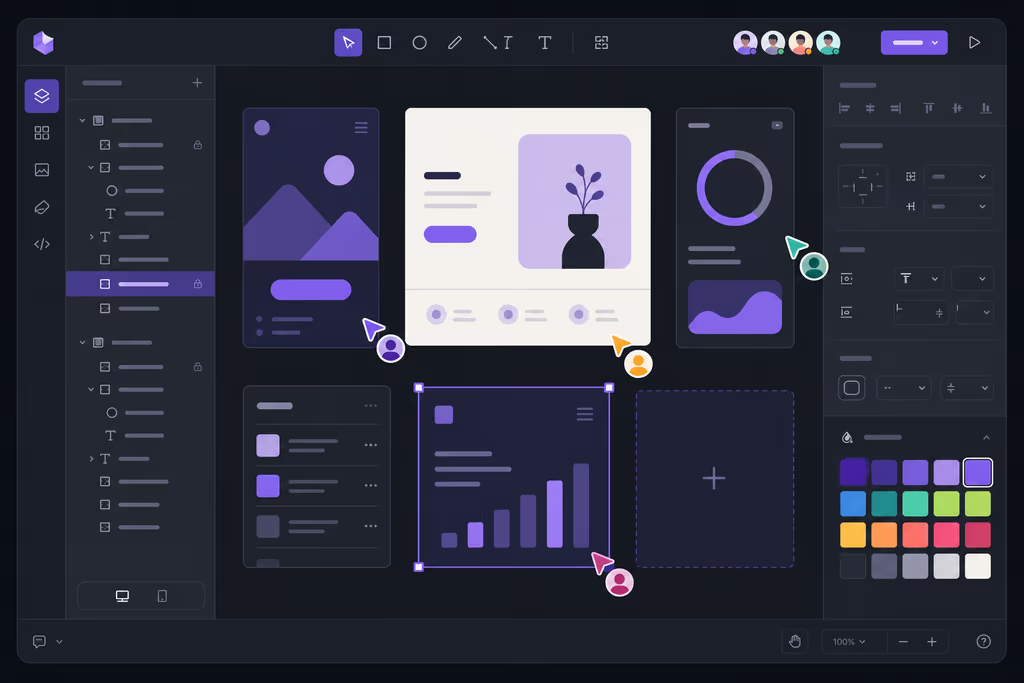
Caption: Artboards and layers in the browser — this only works if the public URI and websockets agree.
Configuration
First Admin Account
- Visit
https://penpot.example.com. - Register the first user (instance owner on a fresh install).
- Create a team and invite people if SMTP is configured.
Lock Down Registration
After the team is in, I drop public signup in .env:
PENPOT_FLAGS=enable-login-with-password enable-smtp disable-registration
cd /opt/penpot
docker compose up -d
Backups
docker compose down
sudo tar -czf penpot-backup-$(date +%F).tar.gz /opt/penpot/.env /var/lib/docker/volumes
docker compose up -d
I record volume names with docker volume ls | grep penpot — they follow the Compose project name.
Updates
cd /opt/penpot
docker compose pull
docker compose up -d
I read Penpot release notes before upgrading anything a designer is using.
Usage
Getting started:
- Log in and create a Team.
- Create a Project and a File.
- Frames, components, color styles; share the file link.
- Inspect for CSS/SVG for developers.
- Export PNG/SVG when marketing needs a still.
How I collaborate:
- File permissions per role.
- Shared libraries for buttons and type.
- Prototype flows before I hand a Laravel/Vue build a pile of screenshots.
Where it broke
On a lab Ubuntu 24.04 box this is the failure Penpot is famous for once Compose says "healthy."
1. Blank page / websocket errors
The UI loaded a shell and then sat there. Browser console talked about websockets. Official troubleshooting: PENPOT_PUBLIC_URI must match the HTTPS domain exactly — scheme + host, no games with http:// behind Caddy or a trailing slash that does not match what I typed.
Fix:
PENPOT_PUBLIC_URI=https://penpot.example.com
Then:
cd /opt/penpot
docker compose up -d
2. 502 from the reverse proxy
Caddy returned 502. docker compose logs -f showed the frontend still coming up, or the proxy port did not match Compose. I wait for healthy containers, then:
docker compose port penpot-frontend 80
I point Caddy at that host port (9001 in the official file). If I guessed 80 on the host, that is the 502.
Email not sending is enable-smtp missing from PENPOT_FLAGS, or SMTP credentials that fail outside Penpot too. I test SMTP with a one-off before I blame the flags.
Troubleshooting
- Slow editor: more RAM; assets on SSD volumes.
- Cannot register after
disable-registration: CLI/admin flows in Penpot help, or temporarily re-enable registration. - Upgrade failures: stop stack, backup volumes, pull,
docker compose up -d, read logs.
Scaling, Securing, and Next Steps
- S3-compatible storage for media when libraries get large (Penpot admin docs).
- SSO/OIDC if the team already has an IdP.
- Uptime Kuma on
/api/health. - Off-site copies of volume archives.
- Point the component library at the Tailwind/Laravel set we actually ship.
Conclusion
Penpot is running under /opt/penpot on my Ubuntu 24.04 VPS: official Compose, Caddy on penpot.example.com, registration closed after the first team. Client boards stay in my volumes.
Next I would restore that backup tarball once, turn on SMTP for real invites, and only then give designers the URL. The blank-page wall was PENPOT_PUBLIC_URI, not "Docker is hard."
Did you hit the same wall?
I got stuck on a blank editor because PENPOT_PUBLIC_URI did not match HTTPS (websockets never connected). Did you hit the same thing, or a different one — Caddy 502, SMTP flags, registration locked too early? Tell me in the comments. I read them.
Need this done on your server?
I deploy and harden Laravel/CodeCanyon apps on cPanel or VPS, and offer monthly Server Watch retainers. Hire for deploy · Care plan
References
- Official Site: https://penpot.app/
- GitHub: https://github.com/penpot/penpot
- Self-Hosting Docs: https://help.penpot.app/technical-guide/getting-started/docker/
- Docker Compose File: https://github.com/penpot/penpot/tree/develop/docker/images