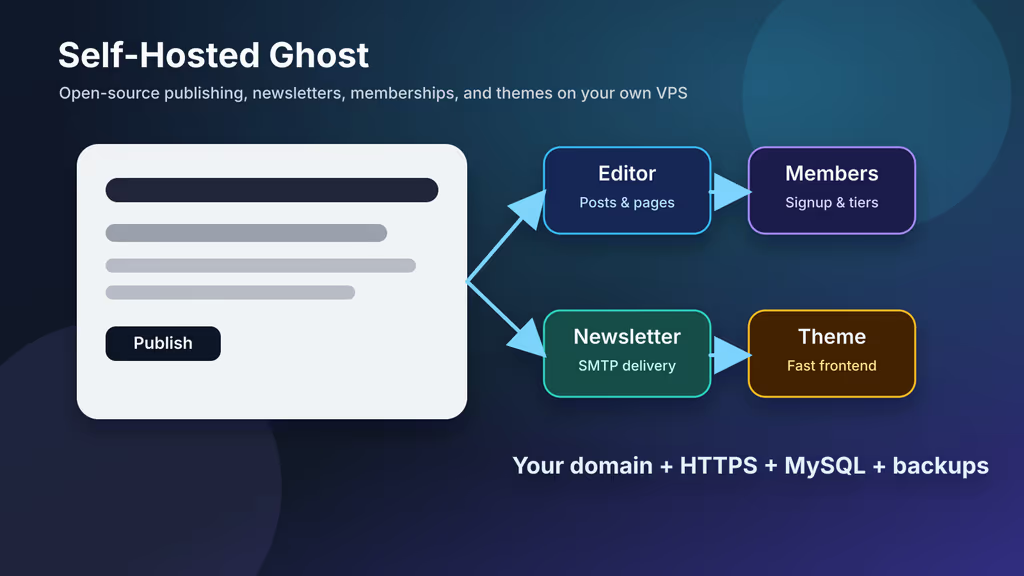
Caption: Ghost on my VPS — articles, members, and newsletters without handing the archive to a hosted CMS.
Introduction
I wanted a writing stack I operate: posts, newsletters, members, a theme I can break without waiting on a SaaS dashboard. Ghost is Node.js + MySQL, admin at /ghost. It is not WordPress with extra plugins. That is why I picked it.
On Ubuntu 24.04 I labbed two paths. Docker Compose: official ghost:6-alpine plus MySQL 8, bound to 127.0.0.1:2368, Nginx and Certbot in front. Ghost-CLI: Nginx, MySQL 8, Node.js 22, systemd — the installer wires SSL if I answer the prompts honestly.
The wall I hit on the Docker path is the one this install is famous for: Nginx 502 Bad Gateway because Ghost is not up yet, or Nginx proxies to the wrong local port. On Ghost-CLI, the installer fails permission checks if I run it as root or put the site under /root. I moved to a normal sudo user and /var/www/ghost, then ghost install finished.
I set url to the final https:// hostname before I invite staff. Localhost mail is not how I send newsletters.
Why I picked Ghost
- Posts, pages, members, tags, themes — not a general-purpose CMS I have to tame.
- Open-source core; content lives on my disk and MySQL.
- Fast enough on a modest VPS when MySQL is local.
- Members and newsletters without a plugin zoo.
- Handlebars themes I can version in git.
- Docker or Ghost-CLI, depending on how I want to operate the box.
I use it for a publication I am willing to patch. If I wanted zero ops, I would pay Ghost(Pro). I wanted the server.
Prerequisites
Hardware:
- 1 CPU / 1 GB RAM for a small site
- 2 CPU / 2–4 GB RAM if I send newsletters and host a lot of images
- 20 GB free to start, plus room for images, themes, DB, backups
- SSD for MySQL
Software and accounts:
- Ubuntu 24.04 LTS with sudo
- Domain such as
ghost.example.com - DNS
AorAAAA - SMTP for staff, members, and newsletters
- Docker + Compose for the container path
- Nginx, MySQL 8, Node.js 22 LTS, Ghost-CLI for the manual path
Security notes:
- SSH keys; password SSH off.
- 80/443 open; MySQL not on the public internet.
- Ghost
url= final HTTPS URL before users exist. - Backup content directory and MySQL before major upgrades.
- Real SMTP provider.
sudo apt update
sudo apt upgrade -y
sudo apt install -y ca-certificates curl gnupg git ufw

sudo ufw allow OpenSSH
sudo ufw allow 80/tcp
sudo ufw allow 443/tcp
sudo ufw enable
sudo ufw status
Installation Guide
I pick one method per server unless I am running two Ghosts on different domains.
1. Docker Compose Method: Create the Project Directory
curl -fsSL https://get.docker.com | sudo sh
sudo usermod -aG docker "$USER"
newgrp docker
docker --version
docker compose version
sudo mkdir -p /opt/ghost
sudo chown "$USER":"$USER" /opt/ghost
cd /opt/ghost
2. Docker Compose Method: Define Ghost and MySQL
The Ghost image maps nested config with double underscores.
cat > compose.yaml <<'EOF'
services:
  ghost:
    image: ghost:6-alpine
    restart: unless-stopped
    depends_on:
      - db
    ports:
      - "127.0.0.1:2368:2368"
    environment:
      url: https://ghost.example.com
      database__client: mysql
      database__connection__host: db
      database__connection__user: ghost
      database__connection__password: change-this-ghost-db-password
      database__connection__database: ghost
      mail__transport: SMTP
      mail__options__host: smtp.example.com
      mail__options__port: 587
      mail__options__secure: "false"
      mail__options__auth__user: ghost@example.com
      mail__options__auth__pass: change-this-smtp-password
    volumes:
      - ghost-content:/var/lib/ghost/content

  db:
    image: mysql:8.0
    restart: unless-stopped
    environment:
      MYSQL_ROOT_PASSWORD: change-this-root-password
      MYSQL_DATABASE: ghost
      MYSQL_USER: ghost
      MYSQL_PASSWORD: change-this-ghost-db-password
    volumes:
      - ghost-db:/var/lib/mysql

volumes:
  ghost-content:
  ghost-db:
EOF
Same MySQL password on both services. Real domain and passwords before up.
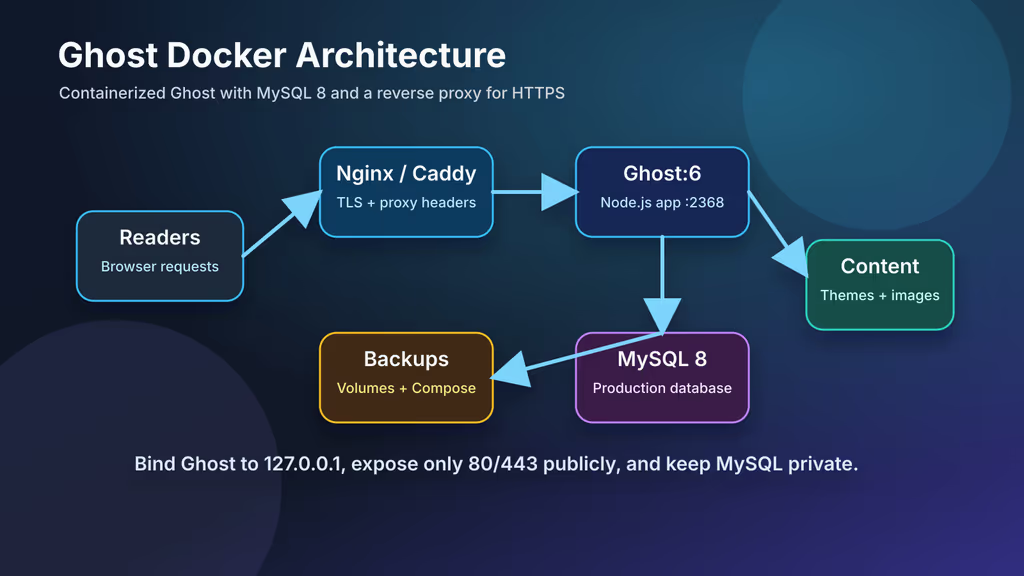
Caption: Ghost and MySQL in Compose; Nginx or Caddy owns HTTPS. Port 2368 stays on localhost.
3. Docker Compose Method: Start Ghost
cd /opt/ghost
docker compose pull
docker compose up -d
docker compose ps
docker compose logs -f ghost
Ghost listens on 127.0.0.1:2368. I do not publish 2368 to the world.
4. Docker Compose Method: Add HTTPS with Nginx
sudo apt install -y nginx certbot python3-certbot-nginx
/etc/nginx/sites-available/ghost.example.com:
server {
    listen 80;
    listen [::]:80;
    server_name ghost.example.com;

    location / {
        proxy_set_header Host $host;
        proxy_set_header X-Real-IP $remote_addr;
        proxy_set_header X-Forwarded-For $proxy_add_x_forwarded_for;
        proxy_set_header X-Forwarded-Proto $scheme;
        proxy_pass http://127.0.0.1:2368;
    }
}
sudo ln -s /etc/nginx/sites-available/ghost.example.com /etc/nginx/sites-enabled/
sudo nginx -t
sudo systemctl reload nginx
sudo certbot --nginx -d ghost.example.com
Then https://ghost.example.com/ghost for the owner account.
5. Manual Method: Install the Official Stack
sudo apt install -y nginx mysql-server
sudo mysql_secure_installation
Node.js 22 from NodeSource:
curl -fsSL https://deb.nodesource.com/setup_22.x | sudo -E bash -
sudo apt install -y nodejs
node --version
npm --version
sudo npm install ghost-cli@latest -g
ghost --version
sudo mysql
CREATE DATABASE ghost_prod CHARACTER SET utf8mb4 COLLATE utf8mb4_unicode_ci;
CREATE USER 'ghost_prod'@'localhost' IDENTIFIED BY 'change-this-strong-password';
GRANT ALL PRIVILEGES ON ghost_prod.* TO 'ghost_prod'@'localhost';
FLUSH PRIVILEGES;
EXIT;
6. Manual Method: Run Ghost-CLI
Not under /root. Ghost-CLI wants a normal user with sudo.
sudo mkdir -p /var/www/ghost
sudo chown "$USER":"$USER" /var/www/ghost
sudo chmod 775 /var/www/ghost
cd /var/www/ghost
ghost install
Prompts I actually fill:
- Blog URL:
https://ghost.example.com - MySQL hostname:
localhost - MySQL username:
ghost_prod - MySQL password: the one I created
- Ghost database name:
ghost_prod - Set up Nginx:
Y - Set up SSL:
Y - Real email for certificate notices
- Set up systemd:
Y - Start Ghost:
Y
ghost ls
ghost doctor
systemctl status ghost_ghost-example-com
Unit name follows the domain. ghost ls if I forget.
Configuration
Public URL and Admin URL
Docker — url in Compose, then:
cd /opt/ghost
docker compose up -d
Ghost-CLI:
cd /var/www/ghost
ghost config url https://ghost.example.com
ghost restart
A separate admin.url only after both hostnames have DNS and HTTPS.
Email Delivery
Docker: mail__options__* in Compose as above. Ghost-CLI:
cd /var/www/ghost
ghost config mail.transport SMTP
ghost config mail.options.host smtp.example.com
ghost config mail.options.port 587
ghost config mail.options.secure false
ghost config mail.options.auth.user ghost@example.com
ghost config mail.options.auth.pass change-this-smtp-password
ghost restart
I send a test invite. Spam means SPF/DKIM/DMARC on the sending domain, not "Ghost is broken."
Themes and Content
Upload from Settings → Design & branding, or drop themes in content/themes and restart. Docker: ghost-content volume. Ghost-CLI: /var/www/ghost/content. Themes belong in git; I do not edit random files inside the image.
Usage
https://ghost.example.com/ghost
Owner account, then:
- Title, description, logo, accent, language.
- Staff with the smallest role that works.
- Tags for the categories I actually use.
- Theme.
- SMTP test.
- Draft → preview → publish.
- Members: tiers, portal, payments if I am charging.
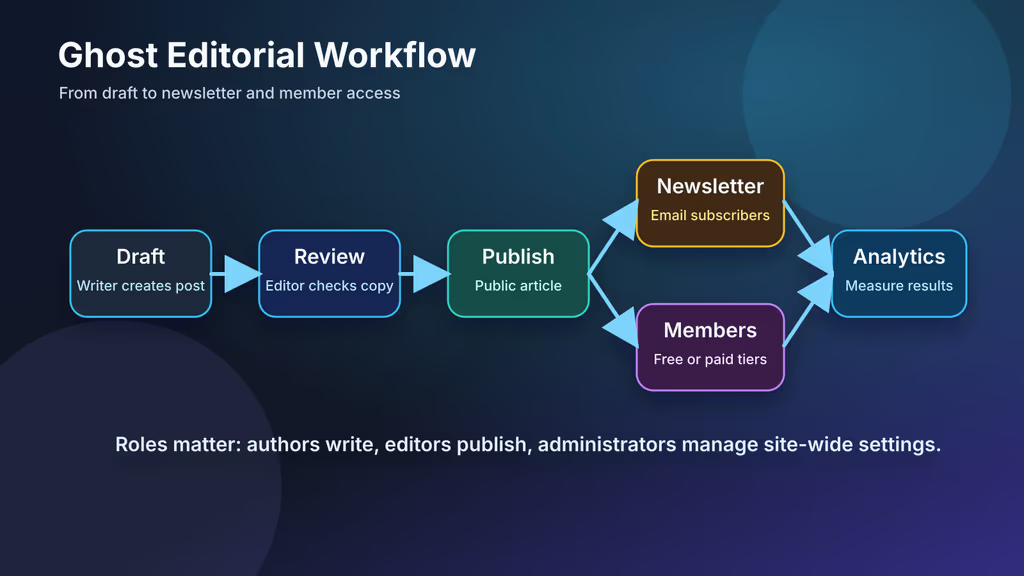
Caption: Draft, review, newsletter, members, public URL — that is the loop I wanted.
Authors write, editors publish, admins touch settings. Owner lives in a password manager.
Screenshots and Visuals
Diagrams are originals. After install I screenshot my admin, members (blurred), newsletter sender, theme, backup output. Not random Ghost shots from search.
Where it broke
On Ubuntu 24.04 this is the failure I see in Ghost's own troubleshooting and in every "Ghost behind Nginx" thread.
1. Nginx 502 Bad Gateway
Browser showed 502. Ghost was not listening on 127.0.0.1:2368, or Nginx pointed at another port.
docker compose ps
docker compose logs -f ghost
Ghost-CLI:
ghost ls
ghost doctor
Nginx proxy_pass must be http://127.0.0.1:2368 for this Compose file. If MySQL is still starting, Ghost exits and Nginx 502s until db is healthy — I wait, then docker compose ps again.
2. Ghost-CLI permission / directory checks
ghost install refused to continue. Official rule: not root, not /root, not a random home folder the CLI flags. I used a sudo user and /var/www/ghost owned by that user (chmod 775). Then the installer ran.
Docker Ghost vs MySQL is the other classic: password mismatch, or database__connection__host set to localhost instead of db inside Compose. The host name db is the service name on the Compose network.
Admin on HTTP or weird redirects: Ghost url is still http:// or a hostname that is not what Certbot issued. I set the final https:// URL and restart.
Troubleshooting
- Email not delivered: host, port, TLS, user, password, From, DNS. Many providers want app passwords and a verified domain.
- Image uploads fail: disk full, or permissions on content / the Docker volume.
- Updates fail: backup first, latest minor before a major, then
ghost updateor a new image tag.
Scaling, Securing, and Next Steps
Backups
Docker:
cd /opt/ghost
docker compose stop
sudo tar -czf /root/ghost-docker-backup-$(date +%F).tar.gz compose.yaml /var/lib/docker/volumes
docker compose start
Ghost-CLI:
cd /var/www/ghost
ghost stop
mysqldump -u ghost_prod -p ghost_prod > /root/ghost-prod-$(date +%F).sql
sudo tar -czf /root/ghost-content-$(date +%F).tar.gz /var/www/ghost/content
ghost start
I restore on a spare box once. An untested dump is a hopeful file.
Upgrades
Docker:
cd /opt/ghost
docker compose pull
docker compose up -d
docker compose logs --since=10m ghost
Ghost-CLI:
cd /var/www/ghost
ghost backup
ghost update
ghost doctor
Release notes before majors. Official Docker docs want the latest minor before jumping majors.
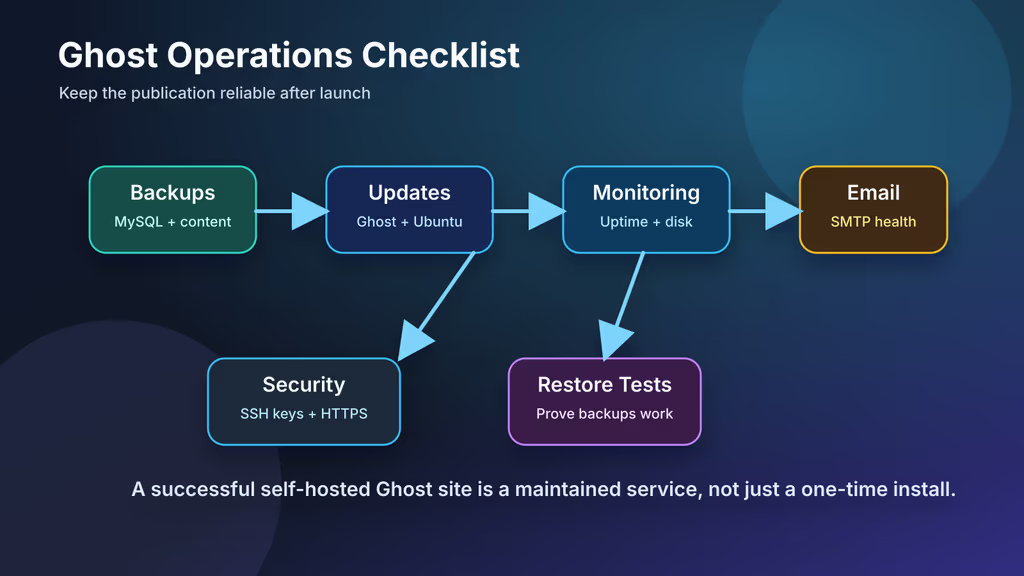
Caption: Backups, upgrades, HTTPS, and mail — that is the publication, not just the editor.
Monitoring and hardening
- Watch
https://ghost.example.comand/ghost. - Disk, MySQL/container restarts, failed backups.
- Ubuntu patches.
- SSH keys only.
- SMTP, DB, Stripe secrets out of shared notes.
- Review staff and integrations.
- Off-site copy of DB + content.
Conclusion
Ghost is running on my Ubuntu 24.04 VPS: either Compose on 127.0.0.1:2368 with Nginx/Certbot, or Ghost-CLI under /var/www/ghost with systemd. Admin is at /ghost, MySQL holds the posts, SMTP is configured before I invite anyone.
Next I would restore a backup once, send a real newsletter to myself, and pin an image tag. The 502 was Ghost not listening; Ghost-CLI was me installing as the wrong user in the wrong directory.
Did you hit the same wall?
I got stuck on Nginx 502 Bad Gateway because nothing was listening on 127.0.0.1:2368. Did you hit the same thing, or a different one — Ghost-CLI permissions under /root, MySQL host localhost inside Compose, mail that never left? Tell me in the comments. I read them.
Need this done on your server?
I deploy and harden Laravel/CodeCanyon apps on cPanel or VPS, and offer monthly Server Watch retainers. Hire for deploy · Care plan