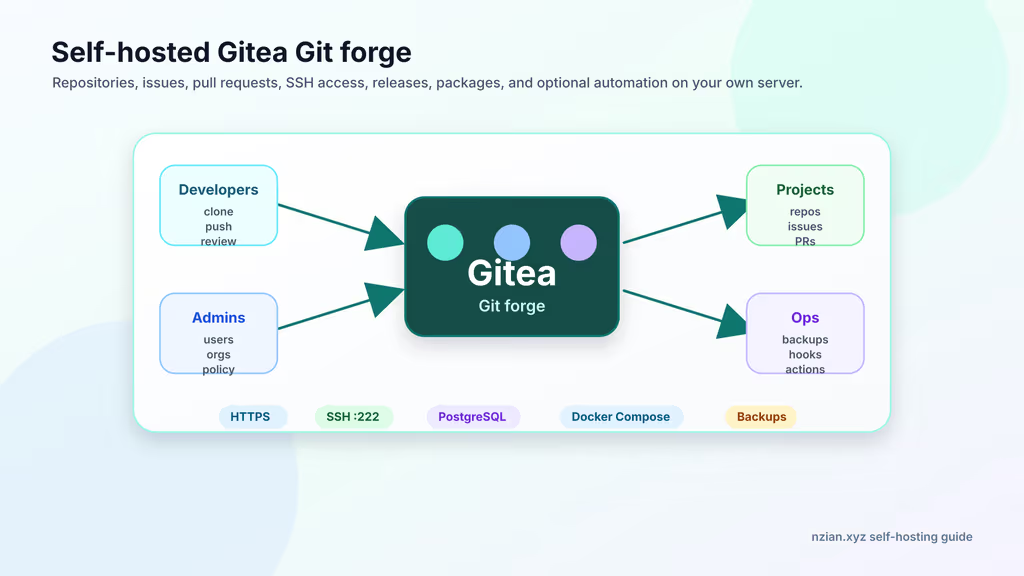
Caption: Gitea on my VPS: repos, issues, PRs, packages, SSH on a dedicated port, optional Actions later.
Why I wanted this on my server
I was tired of bare repos over SSH with no review UI, and I did not want GitLab’s RAM bill for a handful of private projects. Gitea is a small Git forge: repositories, pull requests, issues, releases, packages, webhooks, optional Actions. It feels familiar if you have used GitHub. The footprint fits a VPS I already pay for.
The code on this box includes Compose files, deploy keys, and client work. I wanted that under my backup policy, with registration off and clone URLs that match the hostname I actually use. For a homelab it is also where I version Ansible notes and documentation I do not want on a public GitHub account. A successful login is not the end: backups, SSH, update testing, and runner isolation matter more than the first repository.
What I actually installed
Ubuntu 24.04 LTS, Docker Compose, official docker.gitea.com/gitea image (pinned 1.27.1 here), PostgreSQL 16, Nginx + Let’s Encrypt, data under /opt/gitea. Site: https://git.example.com. Web bound to 127.0.0.1:3000. Container SSH published on host port 222 so host OpenSSH can keep port 22.
Hardware: 1 vCPU / 1 GB is enough for a personal forge; 2 vCPU / 2–4 GB if the team indexes a lot or uses the package registry. SSD for Git objects, attachments, avatars, packages, logs, and Postgres. Off-server backups. I would not put Actions runners on this same host — CI executes repository code and should not sit next to the forge database.
Security I would not skip: HTTPS before real users, SSH on 222 so host OpenSSH keeps 22, registration off unless I intentionally run a public community, .env and backups private, and a dump of both Postgres and /opt/gitea/data before every image bump.
I install Nginx, Certbot, git, rsync, jq, and the PostgreSQL client on the Ubuntu host so clone tests and dumps do not depend on a second toolbox.
Where it broke
On a fresh Ubuntu 24.04 box this install is famous for clone URLs that lie, then SSH that never connects.
I finished the wizard, created a test repo, and copied the SSH URL from the UI. It showed git@git.example.com:owner/repo.git with no port. My laptop’s ssh hit host OpenSSH on 22, not Gitea’s container SSH. ssh -T git@git.example.com talked to the wrong daemon. git clone hung or asked for a user that does not exist on the host.
The Compose file maps "222:22". Gitea must advertise that:
GITEA__server__ROOT_URL=https://git.example.com/GITEA__server__SSH_DOMAIN=git.example.comGITEA__server__SSH_PORT=222
Clone like this:
ssh -T -p 222 git@git.example.com
git clone ssh://git@git.example.com:222/your-user/test-repo.git
UFW needs 222/tcp. If the UI still prints the wrong URL after env changes, grep app.ini:
docker compose exec server bash -lc 'grep -E "ROOT_URL|SSH_DOMAIN|SSH_PORT" /data/gitea/conf/app.ini'
The other classic failure: container cannot write /data. Host-mounted ./data must be writable by USER_UID / USER_GID (1000/1000 in this Compose). Permission denied in server logs means chown the data directory to match.
Other documented gotchas I kept: 413 on large pushes is Nginx client_max_body_size, not Gitea “being broken.” Database connection failures — docker compose ps, db health, passwords in .env matching Compose. Registration policy wrong — [service] DISABLE_REGISTRATION in app.ini after Compose changes. SMTP silent — host, port, protocol, user, password, From address, then docker compose logs server. Incomplete backups — restore on a temporary server and check repos, issues, attachments, releases, packages, users, and settings. If you enable Gitea Actions, use a separate runner host. CI should not share the forge’s database and backup credentials.
The web port stays on 127.0.0.1:3000 so only Nginx can reach it. If I needed Git SSH on port 22, I would dedicate the host or move OpenSSH first — I did not do that here.
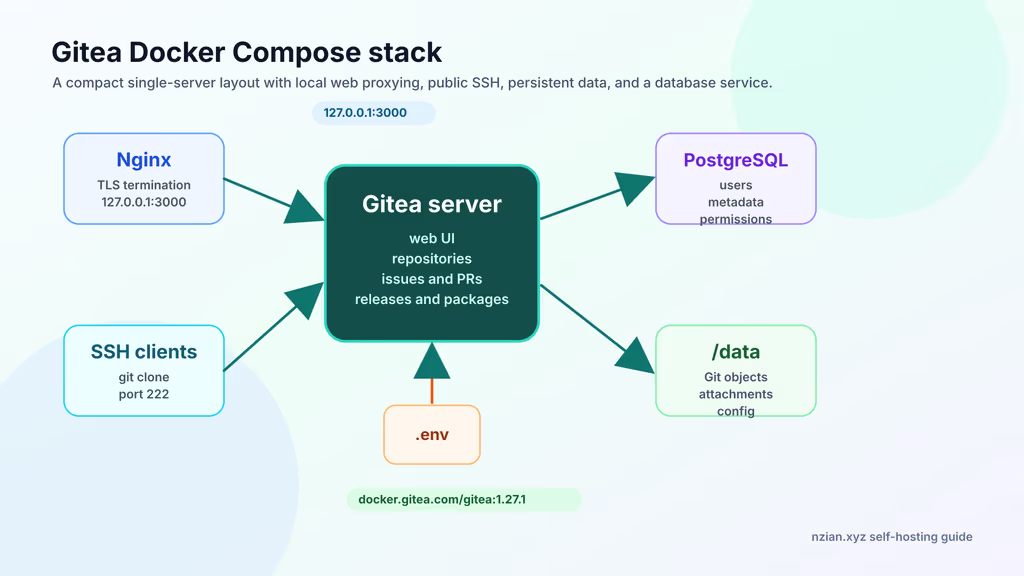
Caption: Web on loopback 3000, SSH on host 222, Postgres for metadata, Git objects on disk.
The working install
sudo apt update
sudo apt upgrade -y
sudo apt install -y ca-certificates curl gnupg openssl ufw nginx certbot python3-certbot-nginx jq git rsync postgresql-client

sudo ufw allow OpenSSH
sudo ufw allow 80/tcp
sudo ufw allow 443/tcp
sudo ufw allow 222/tcp
sudo ufw enable
sudo ufw status
1. Install Docker Engine
curl -fsSL https://get.docker.com | sudo sh
sudo usermod -aG docker "$USER"
newgrp docker

docker --version
docker compose version
2. Create the project directory
sudo mkdir -p /opt/gitea/{data,postgres,backups}
sudo chown -R "$USER":"$USER" /opt/gitea
chmod 700 /opt/gitea
cd /opt/gitea
3. Generate environment values
cd /opt/gitea

GITEA_DB_PASSWORD="$(openssl rand -base64 36 | tr -d '\n')"
cat > .env <<EOF
GITEA_DOMAIN=git.example.com
GITEA_ROOT_URL=https://git.example.com/
GITEA_SSH_PORT=222
GITEA_DB_PASSWORD=${GITEA_DB_PASSWORD}
POSTGRES_PASSWORD=${GITEA_DB_PASSWORD}
EOF

chmod 600 .env
Store the password in your password manager.
4. Write Docker Compose configuration
networks:
  gitea:
    external: false

services:
  server:
    image: docker.gitea.com/gitea:1.27.1
    container_name: gitea
    restart: always
    environment:
      - USER_UID=1000
      - USER_GID=1000
      - GITEA__database__DB_TYPE=postgres
      - GITEA__database__HOST=db:5432
      - GITEA__database__NAME=gitea
      - GITEA__database__USER=gitea
      - GITEA__database__PASSWD=${GITEA_DB_PASSWORD}
      - GITEA__server__DOMAIN=${GITEA_DOMAIN}
      - GITEA__server__SSH_DOMAIN=${GITEA_DOMAIN}
      - GITEA__server__SSH_PORT=${GITEA_SSH_PORT}
      - GITEA__server__ROOT_URL=${GITEA_ROOT_URL}
      - GITEA__service__DISABLE_REGISTRATION=true
      - GITEA__service__REQUIRE_SIGNIN_VIEW=false
      - GITEA__repository__DEFAULT_PRIVATE=last
      - GITEA__session__COOKIE_SECURE=true
    networks:
      - gitea
    volumes:
      - ./data:/data
      - /etc/timezone:/etc/timezone:ro
      - /etc/localtime:/etc/localtime:ro
    ports:
      - "127.0.0.1:3000:3000"
      - "222:22"
    depends_on:
      db:
        condition: service_healthy

  db:
    image: docker.io/library/postgres:16
    container_name: gitea-db
    restart: always
    environment:
      - POSTGRES_USER=gitea
      - POSTGRES_PASSWORD=${POSTGRES_PASSWORD}
      - POSTGRES_DB=gitea
    networks:
      - gitea
    volumes:
      - ./postgres:/var/lib/postgresql/data
    healthcheck:
      test: ["CMD-SHELL", "pg_isready -U gitea -d gitea"]
      interval: 10s
      timeout: 5s
      retries: 5
docker compose config
docker compose pull
docker compose up -d
docker compose ps
docker compose logs -f --tail=100 server
Wait until the web service is listening. Do not finish the wizard over public HTTP; put Nginx in front first.
5. Configure Nginx and HTTPS
sudo tee /etc/nginx/sites-available/gitea >/dev/null <<'EOF'
server {
    listen 80;
    server_name git.example.com;

    client_max_body_size 512m;

    location / {
        proxy_pass http://127.0.0.1:3000;
        proxy_set_header Host $host;
        proxy_set_header X-Real-IP $remote_addr;
        proxy_set_header X-Forwarded-For $proxy_add_x_forwarded_for;
        proxy_set_header X-Forwarded-Proto $scheme;
    }
}
EOF

sudo ln -s /etc/nginx/sites-available/gitea /etc/nginx/sites-enabled/gitea
sudo nginx -t
sudo systemctl reload nginx

sudo certbot --nginx -d git.example.com
curl -I https://git.example.com/
Bump client_max_body_size if you push large packages or LFS.
6. Complete the first-run wizard
Open https://git.example.com/. Database settings should already match Compose: PostgreSQL, db:5432, database/user gitea, password from .env. Set domain, base URL, SSH port 222. Create the administrator while registration is disabled.
Configuration
Environment variables like GITEA__server__ROOT_URL land in app.ini on startup.
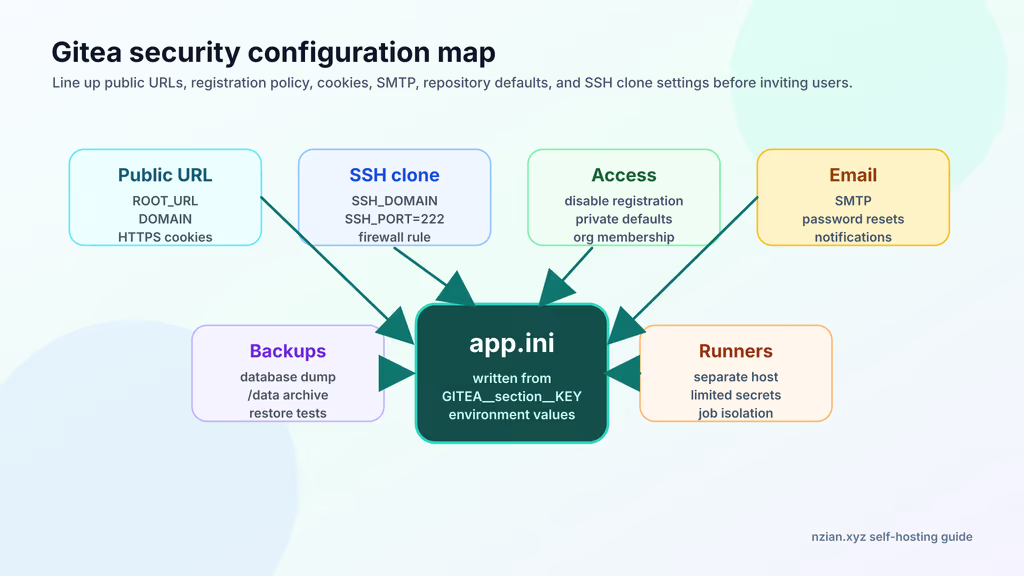
Caption: Public URLs, SSH port, registration off, secure cookies, SMTP, backups.
docker compose exec server bash -lc 'grep -E "ROOT_URL|SSH_DOMAIN|SSH_PORT|DISABLE_REGISTRATION|COOKIE_SECURE" /data/gitea/conf/app.ini'
For a private team forge I use:
[service]
DISABLE_REGISTRATION = true
REQUIRE_SIGNIN_VIEW = true

[repository]
DEFAULT_PRIVATE = private

[server]
ROOT_URL = https://git.example.com/
SSH_DOMAIN = git.example.com
SSH_PORT = 222

[session]
COOKIE_SECURE = true
SMTP before inviting people:
services:
  server:
    environment:
      - GITEA__mailer__ENABLED=true
      - GITEA__mailer__PROTOCOL=smtps
      - GITEA__mailer__SMTP_ADDR=smtp.example.com
      - GITEA__mailer__SMTP_PORT=465
      - GITEA__mailer__FROM=git@example.com
      - GITEA__mailer__USER=git@example.com
      - GITEA__mailer__PASSWD=${GITEA_SMTP_PASSWORD}
docker compose up -d
docker compose logs --tail=100 server
Important information
GITEA__section__KEY env vars rewrite app.ini on boot. I edited app.ini by hand once, restarted, and Compose overwrote the SSH port back. Either drive settings from environment, or know which keys the image owns. Also: 413 on large pushes is Nginx client_max_body_size, not Gitea “being broken.”
If you enable Gitea Actions, use a separate runner host. CI executes repo code. It should not share the forge’s database and backup credentials.
Usage
- Create a daily-use user (not only admin).
- Add an SSH public key.
- Create a private test repo and clone with the port-222 URL.
- Push, open an issue, open a pull request.
- Confirm email if SMTP is on.
ssh -T -p 222 git@git.example.com

git clone ssh://git@git.example.com:222/your-user/test-repo.git
cd test-repo
printf '# Test Repository\n' > README.md
git add README.md
git commit -m "docs: add readme"
git push origin main
Existing project:
git remote add gitea ssh://git@git.example.com:222/your-user/project.git
git push gitea main
git push gitea --tags
Backup, expose, next step
Backups need PostgreSQL and /opt/gitea/data.
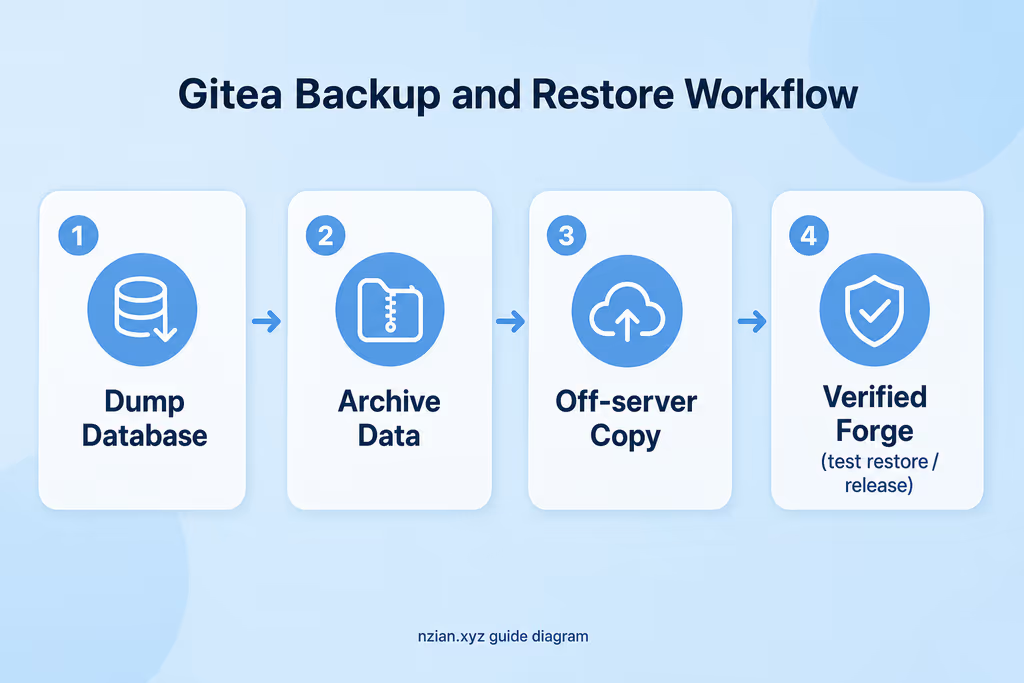
Caption: Postgres dump, data tarball, off-server copy, then a restore I would actually trust.
sudo tee /opt/gitea/backup.sh >/dev/null <<'EOF'
#!/usr/bin/env bash
set -euo pipefail

cd /opt/gitea
stamp="$(date -u +%Y%m%dT%H%M%SZ)"
mkdir -p backups

docker compose exec -T db pg_dump -U gitea -d gitea | gzip > "backups/gitea-db-${stamp}.sql.gz"
tar --one-file-system -czf "backups/gitea-data-${stamp}.tar.gz" data

find backups -type f -mtime +14 -delete
EOF

sudo chmod 700 /opt/gitea/backup.sh
/opt/gitea/backup.sh
rsync -avz /opt/gitea/backups/ backup-user@backup.example.net:/srv/backups/gitea/
cd /opt/gitea
/opt/gitea/backup.sh
docker compose pull
docker compose up -d
docker compose logs --tail=100 server
Pinning docker.gitea.com/gitea:1.27.1 keeps upgrades deliberate.
What I have running now: Gitea 1.27.1 on HTTPS, registration off, Postgres, SSH clones on port 222, a backup script that dumps the DB and data/. Pinning the image tag keeps upgrades deliberate: I read release notes, dump, pull, restart, then clone/push/issue/PR before I throw away the pre-upgrade archive. Next I want a restore drill on a spare VPS and SMTP that actually delivers password resets. Actions stay off this host. Gitea stays pleasant because it is small; I want the deployment still understandable when the disk dies.
Did you hit the same wall?
I got stuck on SSH clones hitting host port 22 instead of Gitea on 222 — wrong clone URL until SSH_PORT and UFW matched. Did you hit the same thing, or a different one — /data permissions, 413 uploads, SMTP? Tell me in the comments. I read them.
Need this done on your server?
I deploy and harden Laravel/CodeCanyon apps on cPanel or VPS, and offer monthly Server Watch retainers. Hire for deploy · Care plan