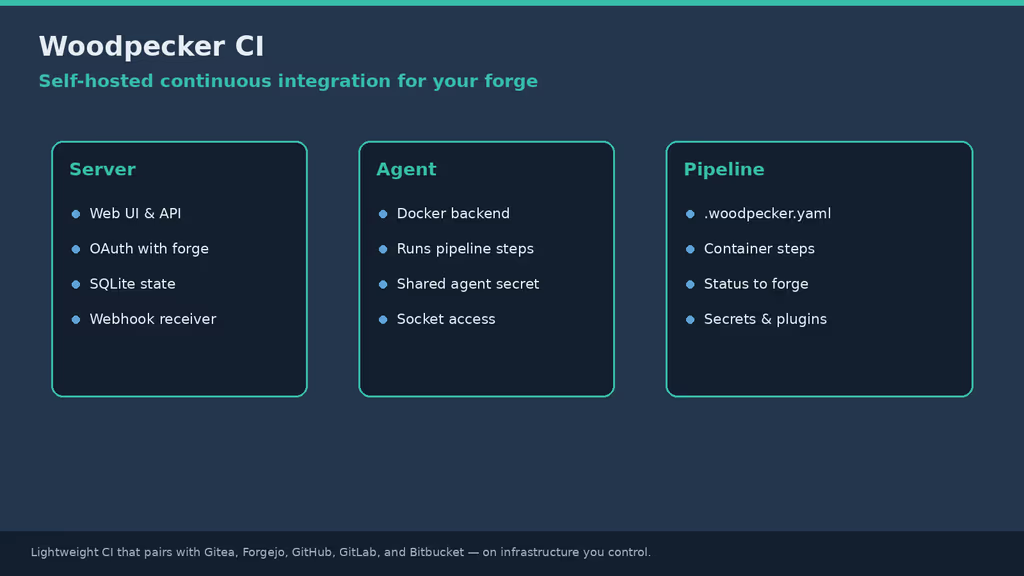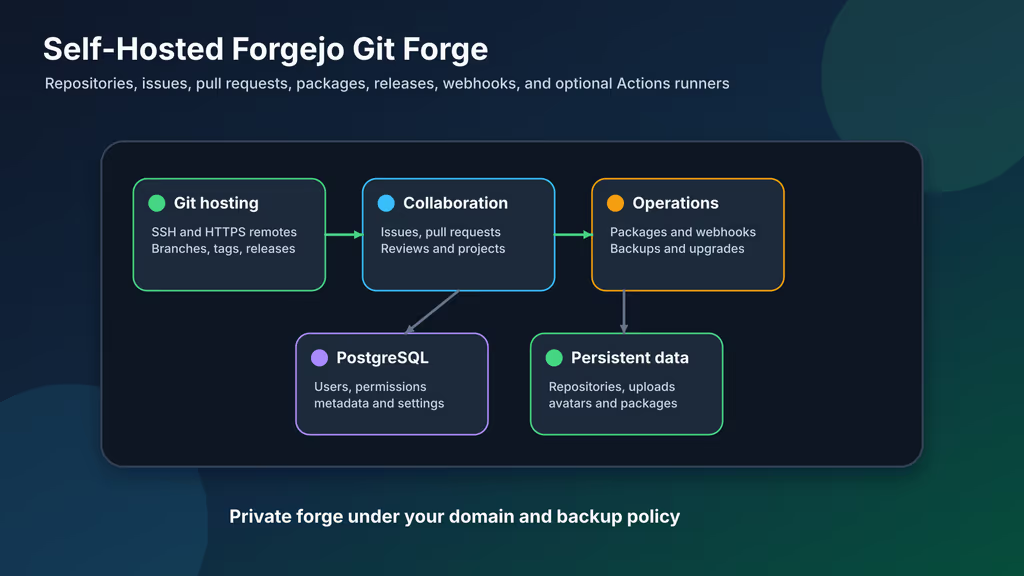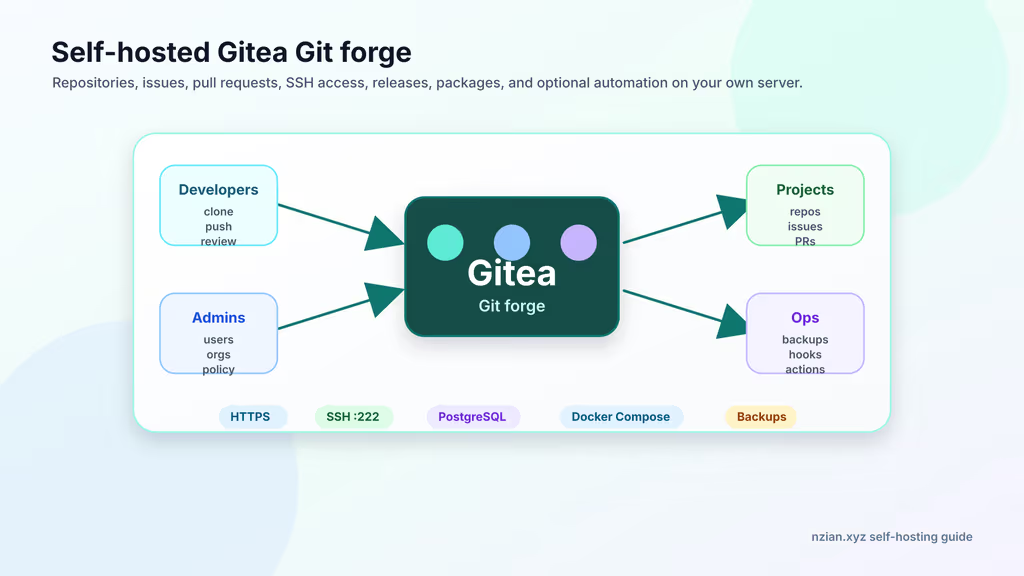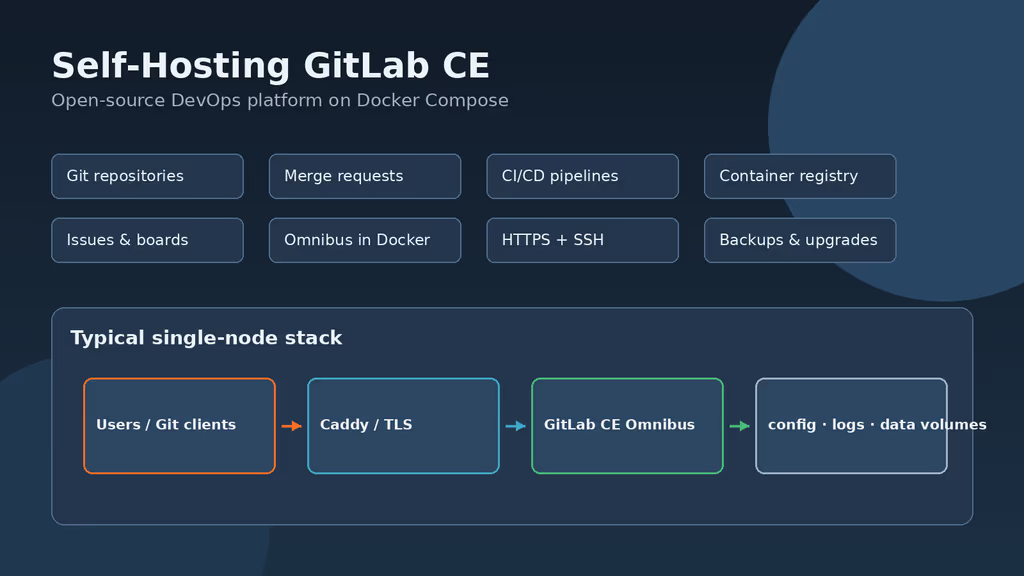
Caption: GitLab CE Omnibus on my VPS: Git, MRs, CI, registry — heavy, but one product.
Why I wanted this on my server
Gitea is enough for small repos. I wanted merge trains, CI, and a container registry without five SaaS bills. GitLab CE is the all-in-one: source, MRs, issues, pipelines, registry. Unlike a lightweight forge, it aims to cover commit-to-deploy. It is also a RAM hog. I only did this on a box that could take it. Agencies and serious homelabs outgrow bare remotes once they need protected branches, runners, and registry images.
Treat it as critical. Incomplete /etc/gitlab backups make restores useless. Untrusted CI on the same Docker host as the data volumes is a bad idea. A compromised root account or a leaked runner token exposes private repositories.
What I actually installed
Ubuntu 24.04 LTS, gitlab/gitlab-ce:18.11.11-ce.0, Compose, volumes under /srv/gitlab (GITLAB_HOME), external_url 'https://gitlab.example.com', HTTP/HTTPS published, Git SSH on host 2222. Official docs often show EE tags; CE uses ce instead of ee.
Hardware: GitLab wants about 8 vCPU / 16 GB for a comfortable node. Floor for a constrained lab: at least 8 GB RAM (slower UI, Sidekiq lag, longer first boot). 4 GB is not a CE host. 40 GB+ SSD for packages, repositories, artifacts, registry layers, and logs — more if you store many images. Off-server capacity for Omnibus backups plus /etc/gitlab secrets. Runners on a separate machine when CI is more than a toy.
Security I would not skip: change the initial root password within 24 hours, pin gitlab/gitlab-ce:<version>-ce.0 instead of latest, keep gitlab-secrets.json out of public Git, open only admin SSH, HTTP, HTTPS, and the Git SSH port I chose.
Where it broke
On a fresh Ubuntu 24.04 box this install is famous for 502 / blank page for several minutes after docker compose up -d.
I thought the container was broken and almost compose down. First boot is Omnibus configuring NGINX, Puma, Sidekiq, Postgres, Redis, Gitaly, migrations. The fix is wait:
docker compose logs -f gitlab
Leave it until NGINX is serving. Ctrl+C only stops the log follow.
Second: /etc/gitlab/initial_root_password expires after 24 hours. I grabbed it immediately:
docker exec -it gitlab grep 'Password:' /etc/gitlab/initial_root_password
Miss that window and you need GitLab’s Rails console password reset. Change root before you do anything else.
Third: restore without gitlab-secrets.json. gitlab-backup create is not enough. Copy $GITLAB_HOME/config with the archive or the restore looks encrypted/wrong.
SSH clones hanging: gitlab_rails['gitlab_shell_ssh_port'] = 2222 must match the published host port and UFW.
Other documented issues: HTTPS certificate failures — DNS must already resolve; check Omnibus NGINX logs under $GITLAB_HOME/logs and ports 80/443 from the internet. Container thrashing — memory below GitLab’s practical floor; stop other heavy services. CI jobs stuck pending — no runner, tag mismatch, or the runner host cannot reach the GitLab URL. Disk filling — artifacts, registry layers, and logs under $GITLAB_HOME/data; enable retention and prune old tags. Do not skip required intermediate versions on major upgrades. Pin tags so a reboot cannot float an unexpected release.
If port 443 must be shared, bind GitLab HTTP to localhost and proxy with Caddy: nginx['listen_https'] = false, keep external_url on https://…, publish SSH separately, and keep X-Forwarded-Proto consistent with GitLab’s reverse-proxy guidance.
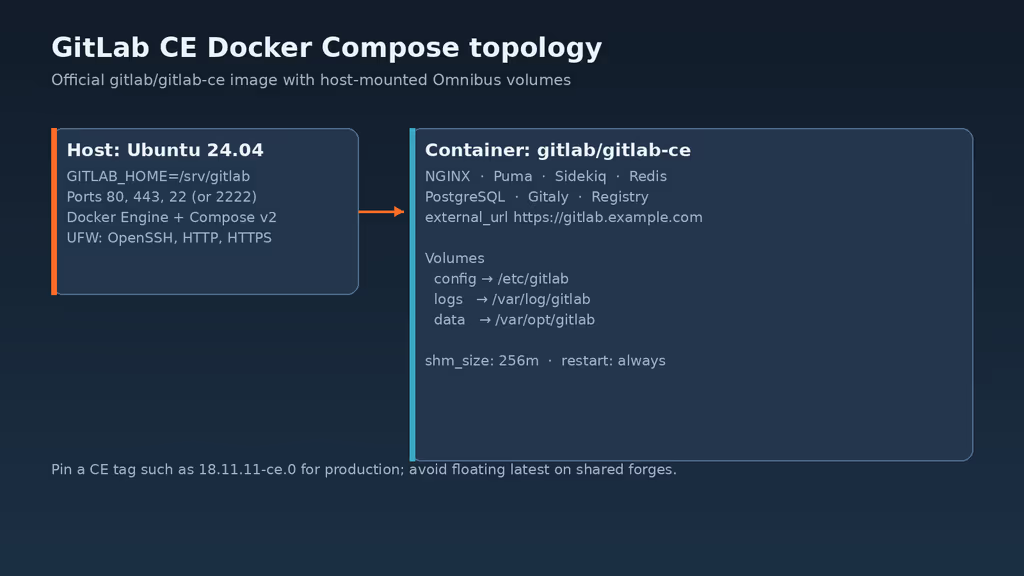
Caption: One CE container, host mounts for config/logs/data, HTTP, HTTPS, Git SSH.
The working install
sudo apt update
sudo apt upgrade -y
sudo apt install -y ca-certificates curl gnupg openssl ufw rsync

sudo ufw allow OpenSSH
sudo ufw allow 80/tcp
sudo ufw allow 443/tcp
# If host SSH stays on 22 and GitLab SSH will use 2222:
sudo ufw allow 2222/tcp
sudo ufw enable
sudo ufw status
This guide keeps host SSH on 22 and maps GitLab Shell to 2222. If you want clone URLs without a port, move host OpenSSH first, as GitLab’s Docker docs describe.
1. Install Docker Engine
sudo apt-get update -qqy
sudo apt-get install ca-certificates curl -qqy
sudo install -m 0755 -d /etc/apt/keyrings
sudo curl -fsSL https://download.docker.com/linux/ubuntu/gpg -o /etc/apt/keyrings/docker.asc
sudo chmod a+r /etc/apt/keyrings/docker.asc

echo \
  "deb [arch=$(dpkg --print-architecture) signed-by=/etc/apt/keyrings/docker.asc] https://download.docker.com/linux/ubuntu \
  $(. /etc/os-release && echo "$VERSION_CODENAME") stable" | \
  sudo tee /etc/apt/sources.list.d/docker.list > /dev/null

sudo apt-get update -qqy
sudo apt-get install docker-ce docker-ce-cli containerd.io docker-compose-plugin -qqy

sudo usermod -aG docker "$USER"
newgrp docker

docker --version
docker compose version
2. Create GITLAB_HOME volumes
sudo mkdir -p /srv/gitlab
sudo chown "$USER":"$USER" /srv/gitlab

export GITLAB_HOME=/srv/gitlab
echo 'export GITLAB_HOME=/srv/gitlab' >> ~/.bashrc

mkdir -p "$GITLAB_HOME"/{config,logs,data}
| Local path | Container path | Purpose |
|---|---|---|
$GITLAB_HOME/config |
/etc/gitlab |
Omnibus config and secrets |
$GITLAB_HOME/logs |
/var/log/gitlab |
Service logs |
$GITLAB_HOME/data |
/var/opt/gitlab |
Application data, Git storage, backups |
3. Write docker-compose.yml
mkdir -p /opt/gitlab-ce
cd /opt/gitlab-ce

cat > docker-compose.yml <<'EOF'
services:
  gitlab:
    image: gitlab/gitlab-ce:18.11.11-ce.0
    container_name: gitlab
    restart: always
    hostname: 'gitlab.example.com'
    environment:
      GITLAB_OMNIBUS_CONFIG: |
        external_url 'https://gitlab.example.com'
        gitlab_rails['gitlab_shell_ssh_port'] = 2222
        # Optional SMTP — replace before relying on mail:
        # gitlab_rails['smtp_enable'] = true
        # gitlab_rails['smtp_address'] = "smtp.example.com"
        # gitlab_rails['smtp_port'] = 587
        # gitlab_rails['smtp_user_name'] = "gitlab@example.com"
        # gitlab_rails['smtp_password'] = "replace-me"
        # gitlab_rails['smtp_domain'] = "example.com"
        # gitlab_rails['smtp_authentication'] = "login"
        # gitlab_rails['smtp_enable_starttls_auto'] = true
        # gitlab_rails['gitlab_email_from'] = "gitlab@example.com"
    ports:
      - '80:80'
      - '443:443'
      - '2222:22'
    volumes:
      - '$GITLAB_HOME/config:/etc/gitlab'
      - '$GITLAB_HOME/logs:/var/log/gitlab'
      - '$GITLAB_HOME/data:/var/opt/gitlab'
    shm_size: '256m'
EOF

chmod 600 docker-compose.yml
DNS should already point here so Omnibus TLS can succeed. If a reverse proxy owns 443, set nginx['listen_https'] = false, publish loopback HTTP, keep external_url on https://….
4. Start GitLab and wait for first boot
cd /opt/gitlab-ce
export GITLAB_HOME=/srv/gitlab
docker compose up -d
docker compose logs -f gitlab
docker compose ps
curl -I https://gitlab.example.com
5. Retrieve the initial root password
docker exec -it gitlab grep 'Password:' /etc/gitlab/initial_root_password
Sign in as root, set a new password immediately.
Configuration
After changing GITLAB_OMNIBUS_CONFIG, recreate:
cd /opt/gitlab-ce
docker compose up -d
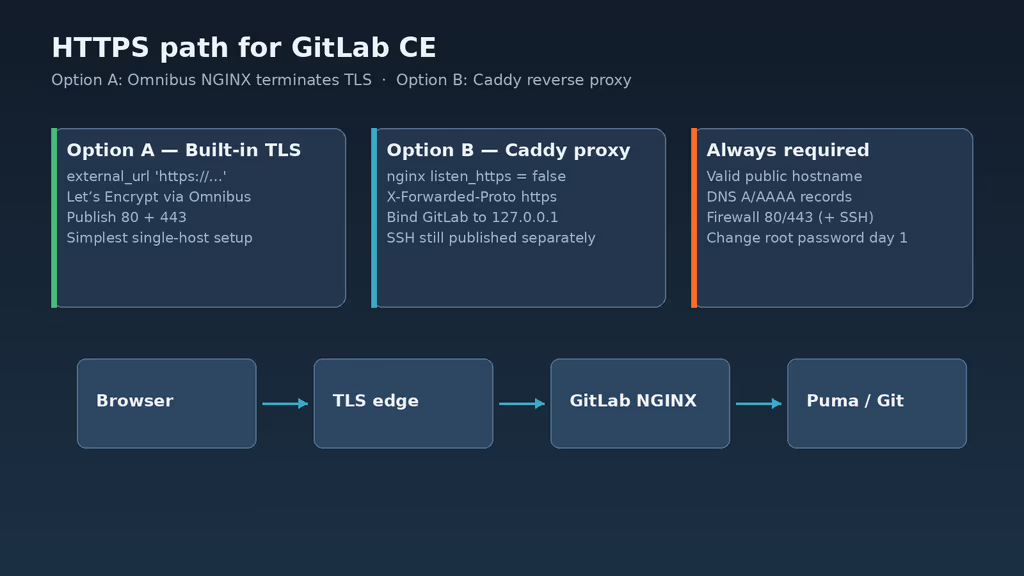
Caption: Omnibus NGINX terminates TLS, or Caddy in front with external_url still HTTPS.
Clone URLs: ssh://git@gitlab.example.com:2222/group/project.git.
Admin Area → Settings → General: disable public sign-up, restrict visibility, require confirmed email once SMTP works.
Helpful to know
gitlab-secrets.json in /etc/gitlab. People back up the backup tarball and skip config. Restore then looks like a successful command that yields garbage. I would rather copy config twice than debug that.
Also: do not skip required intermediate versions on major upgrades. Pin tags so a reboot cannot float latest.
Usage
rootpassword + 2FA.- Your user, group, private project, SSH key.
- Push, open an MR.
- HTTPS clone and SSH clone on 2222.
Runner on a separate host:
# On the runner host
docker run -d --name gitlab-runner --restart always \
  -v /srv/gitlab-runner/config:/etc/gitlab-runner \
  -v /var/run/docker.sock:/var/run/docker.sock \
  gitlab/gitlab-runner:alpine

docker exec -it gitlab-runner gitlab-runner register
Token from Admin Area → CI/CD → Runners.
stages: [test]

hello:
  stage: test
  image: alpine:3.20
  script:
    - echo "GitLab CE runner is working"
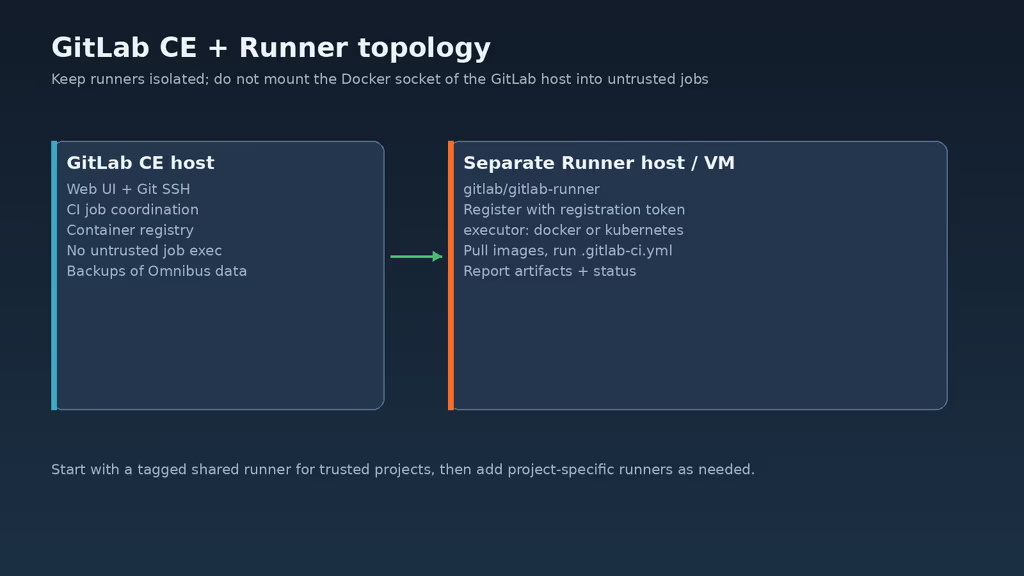
Caption: Pipelines on GitLab; jobs on an isolated runner host.
Jobs stuck pending: no runner, tag mismatch, or the runner cannot reach the GitLab URL.
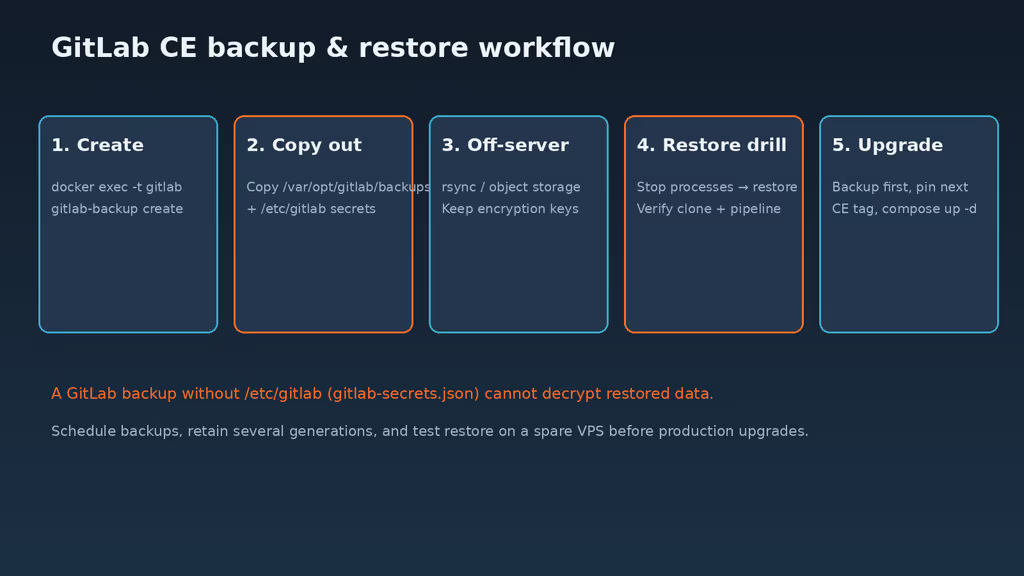
Caption: gitlab-backup create plus /etc/gitlab, off-server, restore drill.
Backup, expose, next step
# Create a backup inside the container (writes under /var/opt/gitlab/backups)
docker exec -t gitlab gitlab-backup create

# Copy backups and critical config/secrets off-box
sudo mkdir -p /var/backups/gitlab-ce
sudo rsync -a /srv/gitlab/data/backups/ /var/backups/gitlab-ce/data-backups/
sudo rsync -a /srv/gitlab/config/ /var/backups/gitlab-ce/config/
rsync -a /var/backups/gitlab-ce/ backup-user@backup.example.net:/srv/backups/gitlab-ce/
cd /opt/gitlab-ce
docker exec -t gitlab gitlab-backup create
# edit image: gitlab/gitlab-ce:<next>-ce.0
docker compose pull
docker compose up -d
docker compose logs -f gitlab
What I have running now: GitLab CE 18.11.11 behind HTTPS, SSH on 2222, root password rotated, volumes under /srv/gitlab. First boot took minutes; I did not kill it. Next: SMTP, disable sign-up, 2FA on admin, a runner on another VM, a restore rehearsal that clones a private project and re-runs a pipeline. I am not running untrusted CI on this Docker host. I track image tags so the forge stays rebuildable when the next CE release lands.
Did you hit the same wall?
I got stuck on 502 for a long first boot and almost killed Omnibus mid-reconfigure; I also nearly missed initial_root_password (24-hour file). Did you hit the same thing, or a different one — SSH port 2222, restore without secrets, RAM thrash? Tell me in the comments. I read them.
Need this done on your server?
I deploy and harden Laravel/CodeCanyon apps on cPanel or VPS, and offer monthly Server Watch retainers. Hire for deploy · Care plan