Self-Hosting ERPNext: A Complete Guide to Running an Open-Source Business Management Suite

ERPNext is a full open-source business management suite for accounting, inventory, CRM, HR, projects, manufacturing, and service teams. This guide walks through a practical Docker-based ERPNext deployment on Ubuntu 24.04 LTS using the official Frappe Docker stack, HTTPS, backups, and day-two operational checks.

· Updated · 7 min read #self-hosted #open-source #erpnext #erp #business #python #frappe #accounting #deployment #docker #vps

 ERPNext self-hosted business management suite

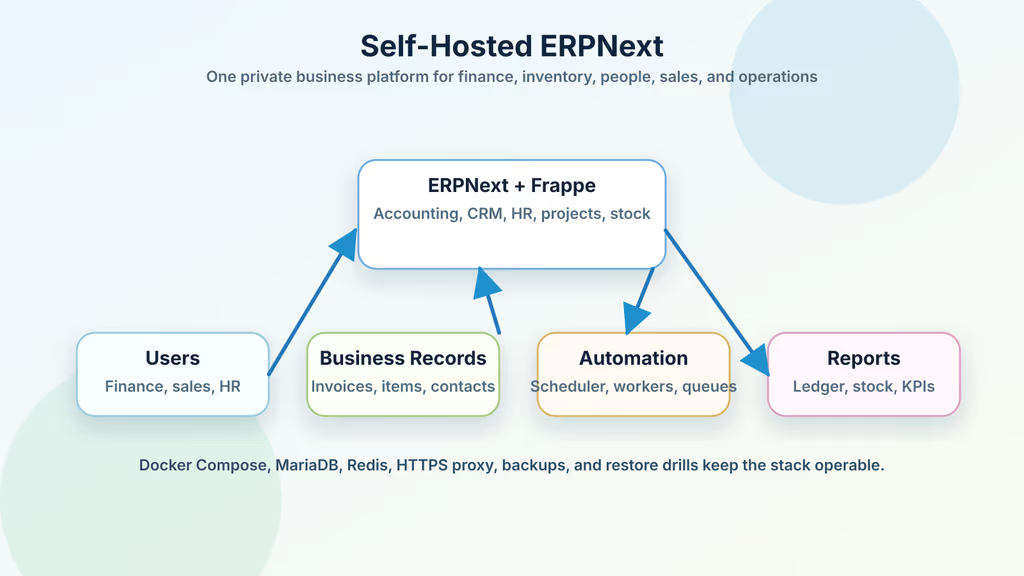
Caption: ERPNext brings accounting, sales, inventory, HR, projects, support, workers, MariaDB, Redis, and HTTPS into one self-hosted business platform.

Introduction

ERPNext is an open-source enterprise resource planning platform built on the Frappe Framework. It combines accounting, selling, buying, inventory, CRM, HR, payroll, projects, manufacturing, quality, assets, support, website pages, and reports in one browser-based system. For a small business, agency, non-profit, repair shop, distributor, or internal operations team, it can replace a patchwork of spreadsheets and disconnected SaaS tools with one auditable source of truth.

Self-hosting ERPNext is attractive when business records must remain under your control. Customer balances, invoices, employee data, supplier contracts, stock movements, tax records, and internal approvals are not casual application data. Running ERPNext on your own VPS or private server lets you decide where those records live, how backups are encrypted, who can access the database, when upgrades happen, and which integrations are allowed to touch production.

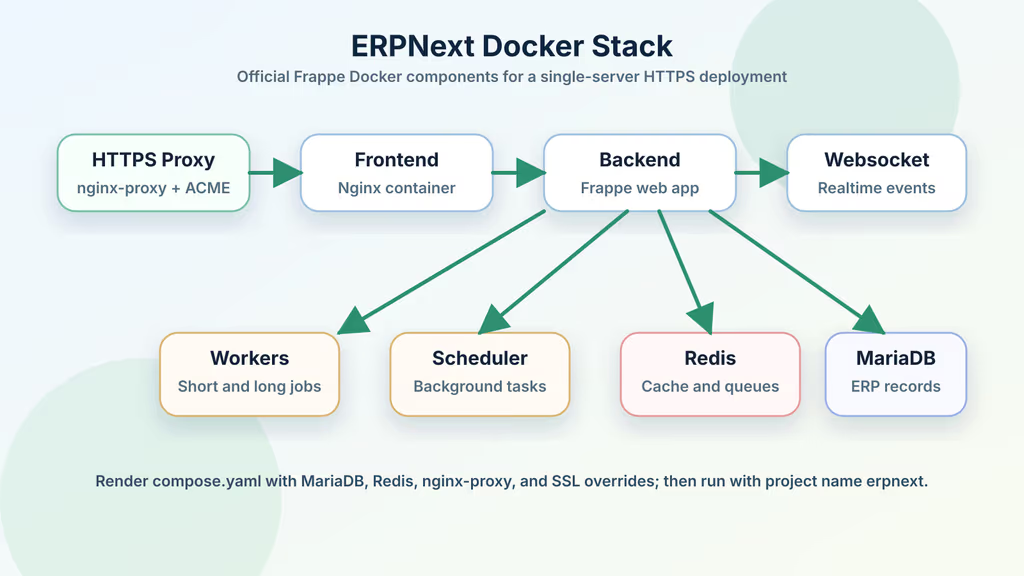
This guide installs ERPNext on Ubuntu 24.04 LTS with Docker Compose using the official frappe_docker repository. The stack uses containerized MariaDB, Redis, backend workers, scheduler services, websocket services, frontend Nginx, and an HTTPS proxy. The example site is erp.example.com; replace it with your real domain before running the commands. By the end, you will have a production-style baseline with HTTPS, a first ERPNext site, operational verification steps, and a backup routine.

Why Choose ERPNext?

  • Broad business coverage: ERPNext includes accounting, sales, purchasing, inventory, HR, projects, CRM, manufacturing, support, assets, and reports.
  • Open-source ownership: The application, framework, and Docker deployment files are inspectable and runnable on infrastructure you control.
  • Integrated workflows: Sales orders, purchase receipts, stock ledger entries, invoices, payments, and reports can share one database instead of separate exports.
  • Role-based permissions: Users can be limited by module, DocType, field, report, company, and workflow responsibility.
  • Docker-based deployment: The official Frappe Docker project provides Compose files and overrides for production patterns.
  • Customizable platform: Frappe apps, custom fields, workflows, print formats, scripts, and integrations can extend the system as business processes mature.
  • Useful for growing teams: ERPNext gives small teams structured operations without locking them into a proprietary ERP vendor.

ERPNext is powerful, but it is not a set-and-forget container. Treat it as a business-critical database application. Backups, upgrade rehearsals, user permissions, chart-of-accounts setup, and accounting validation all matter more than the first successful login.

Prerequisites

Hardware Recommendations:

  • 2 vCPU and 4 GB RAM minimum for a small evaluation or light production site
  • 4 vCPU and 8 GB RAM recommended for smoother background jobs, reports, imports, and multiple users
  • 50 GB SSD storage to start, with room for database growth, private files, public files, logs, and backups
  • Off-server backup storage such as a second VPS, NAS, encrypted object storage, or a managed backup repository
  • A 64-bit Linux server with stable network connectivity and predictable disk performance

Software and Accounts:

  • Ubuntu 24.04 LTS server with sudo access
  • A domain such as erp.example.com
  • DNS A or AAAA record pointing the hostname to your server
  • Docker Engine 23.0 or newer with Docker Compose v2
  • Git, curl, OpenSSL, jq, ufw, and a text editor
  • SMTP credentials if ERPNext will send invoices, password resets, assignments, or workflow notifications
  • A password manager for generated database and administrator credentials

Security Notes:

  • Publish ERPNext only through HTTPS. It contains financial, customer, supplier, and employee records.
  • Keep ~/gitops/erpnext.env and generated secrets private because they contain database passwords and deployment settings.
  • Use named accounts for users. Do not share the Administrator account for day-to-day work.
  • Back up both the database and site files. File attachments, private files, and print assets are part of the business record.
  • Review ERPNext and Frappe release notes before upgrading, especially for accounting, HR, payroll, and workflow changes.
  • Test restore procedures before trusting the system with production operations.

Start with an updated host and a restrictive firewall:

sudo apt update
sudo apt upgrade -y
sudo apt install -y ca-certificates curl git gnupg openssl ufw jq

sudo ufw allow OpenSSH
sudo ufw allow 80/tcp
sudo ufw allow 443/tcp
sudo ufw enable
sudo ufw status

Installation Guide

This deployment stores generated Compose configuration in ~/gitops and keeps the official Frappe Docker repository under /opt/frappe_docker. The example uses the official single-server nginx-proxy and acme-companion overrides because they are easy to understand for one ERPNext bench and one public hostname.

1. Install Docker Engine

Install Docker from the official convenience script and verify the Compose plugin:

curl -fsSL https://get.docker.com | sudo sh
sudo usermod -aG docker "$USER"
newgrp docker

docker --version
docker compose version

If newgrp docker does not refresh your shell, log out and back in before continuing. Running Compose as your normal user keeps the GitOps directory easier to inspect and back up.

2. Clone Frappe Docker

Clone the official deployment repository and create a private configuration directory:

sudo mkdir -p /opt/frappe_docker
sudo chown -R "$USER":"$USER" /opt/frappe_docker

git clone https://github.com/frappe/frappe_docker.git /opt/frappe_docker
mkdir -p ~/gitops
chmod 700 ~/gitops

cd /opt/frappe_docker

The pwd.yml file in this repository is useful for quick demos, but it is not the production path. For a real server, use compose.yaml plus the overrides that match your database, Redis, and proxy design.

3. Create the Environment File

Copy the example environment file, generate strong passwords, and set the hostname and Let's Encrypt email. Replace erp.example.com and admin@example.com with your real values before running this block:

cd /opt/frappe_docker
cp example.env ~/gitops/erpnext.env
chmod 600 ~/gitops/erpnext.env

umask 077
ERPNEXT_DB_ROOT_PASSWORD="$(openssl rand -base64 48 | tr -dc 'A-Za-z0-9' | head -c 32)"
ERPNEXT_ADMIN_PASSWORD="$(openssl rand -base64 48 | tr -dc 'A-Za-z0-9' | head -c 32)"

python3 - <<'PY'
from pathlib import Path
import os

env_path = Path.home() / "gitops" / "erpnext.env"
text = env_path.read_text()
text = text.replace("DB_PASSWORD=123", f"DB_PASSWORD={os.environ['ERPNEXT_DB_ROOT_PASSWORD']}")
text += "\nNGINX_PROXY_HOSTS=erp.example.com\n"
text += "LETSENCRYPT_EMAIL=admin@example.com\n"
env_path.write_text(text)
PY

cat > ~/gitops/erpnext-secrets.env <<EOF
ERPNEXT_DB_ROOT_PASSWORD=${ERPNEXT_DB_ROOT_PASSWORD}
ERPNEXT_ADMIN_PASSWORD=${ERPNEXT_ADMIN_PASSWORD}
EOF

jq -n --arg site "erp.example.com" '{"site": $site, "note": "Store ~/gitops/erpnext-secrets.env in a password manager or encrypted vault."}'

Do not commit erpnext.env or erpnext-secrets.env to a public repository. For production, keep the GitOps repository private and restrict filesystem access to administrators.

 ERPNext Docker Compose stack

Caption: Frappe Docker combines frontend Nginx, backend workers, scheduler services, websocket services, Redis queues, MariaDB, volumes, and an HTTPS proxy.

4. Render the Compose File

Generate a single rendered Compose file using the official base file and the single-server overrides:

cd /opt/frappe_docker

docker compose --project-name erpnext \
  --env-file ~/gitops/erpnext.env \
  -f compose.yaml \
  -f overrides/compose.mariadb.yaml \
  -f overrides/compose.redis.yaml \
  -f overrides/compose.nginxproxy.yaml \
  -f overrides/compose.nginxproxy-ssl.yaml \
  config > ~/gitops/erpnext.yaml

chmod 600 ~/gitops/erpnext.yaml
docker compose --project-name erpnext -f ~/gitops/erpnext.yaml config --services

The rendered file is easier to audit than a long one-off command. It also gives you a concrete artifact to review before upgrades.

5. Start the Stack

Pull images and start the containers:

docker compose --project-name erpnext -f ~/gitops/erpnext.yaml pull
docker compose --project-name erpnext -f ~/gitops/erpnext.yaml up -d
docker compose --project-name erpnext -f ~/gitops/erpnext.yaml ps

Watch startup logs until MariaDB, Redis, backend, frontend, and proxy services are healthy:

docker compose --project-name erpnext -f ~/gitops/erpnext.yaml logs --since=10m backend frontend db redis-cache redis-queue
docker compose --project-name erpnext -f ~/gitops/erpnext.yaml logs --since=10m nginx-proxy acme-companion

Let's Encrypt certificate issuance requires public DNS to resolve and ports 80 and 443 to be reachable from the internet. If the domain is wrong or firewalled, the stack can start while HTTPS still fails.

6. Create the ERPNext Site

Load the generated secrets into your shell and create the first site:

set -a
. ~/gitops/erpnext-secrets.env
set +a

docker compose --project-name erpnext -f ~/gitops/erpnext.yaml exec backend \
  bench new-site --mariadb-user-host-login-scope=% \
  --db-root-password "${ERPNEXT_DB_ROOT_PASSWORD}" \
  --install-app erpnext \
  --admin-password "${ERPNEXT_ADMIN_PASSWORD}" \
  erp.example.com

The site name should match the hostname users will visit. If you later add another hostname, update the proxy host list, regenerate erpnext.yaml, restart the stack, and create or configure the additional site deliberately.

7. Verify HTTPS and First Login

Check the application from the server and then from your browser:

curl -I https://erp.example.com
docker compose --project-name erpnext -f ~/gitops/erpnext.yaml exec backend \
  bench --site erp.example.com list-apps

Open https://erp.example.com, sign in as Administrator, and use the generated ERPNEXT_ADMIN_PASSWORD. Immediately store the password in a password manager, create named administrator accounts, and avoid using Administrator for normal daily operations.

Configuration

ERPNext configuration starts with the setup wizard, but the hosting layer also needs deliberate choices.

System and Company Setup:

  • Complete the setup wizard with the correct country, timezone, currency, company name, fiscal year, and chart of accounts.
  • Create named users for finance, sales, stock, HR, and management roles.
  • Enable two-factor authentication if your organization requires it.
  • Configure email accounts before sending invoices, quotations, assignments, or password reset messages.
  • Review print formats before issuing official customer documents.

Host and Container Settings:

  • Keep ~/gitops/erpnext.env, ~/gitops/erpnext.yaml, and ~/gitops/erpnext-secrets.env readable only by trusted administrators.
  • Use docker compose --project-name erpnext -f ~/gitops/erpnext.yaml ps as the first health check after reboots and upgrades.
  • Keep Docker, the host kernel, and security packages updated through your normal maintenance process.
  • Monitor disk usage for Docker volumes because ERPNext attachments and backups can grow quietly.
  • Decide who can run bench commands on production. A shell with access to the backend container is operationally powerful.

DNS and HTTPS:

  • Confirm erp.example.com resolves to the server before requesting certificates.
  • Do not proxy ERPNext through another public HTTP endpoint unless you understand the real IP and TLS implications.
  • If you use Cloudflare or another proxy, ensure upload size, websocket, and timeout settings support ERPNext workflows.

Usage

After installation, test ERPNext with a business workflow before inviting the whole team.

 ERPNext business workflow

Caption: A practical ERPNext rollout connects customers, quotations, sales orders, delivery notes, invoices, payments, stock movements, and management reports.

First Login Checklist:

docker compose --project-name erpnext -f ~/gitops/erpnext.yaml exec backend \
  bench --site erp.example.com doctor

docker compose --project-name erpnext -f ~/gitops/erpnext.yaml exec backend \
  bench --site erp.example.com scheduler status
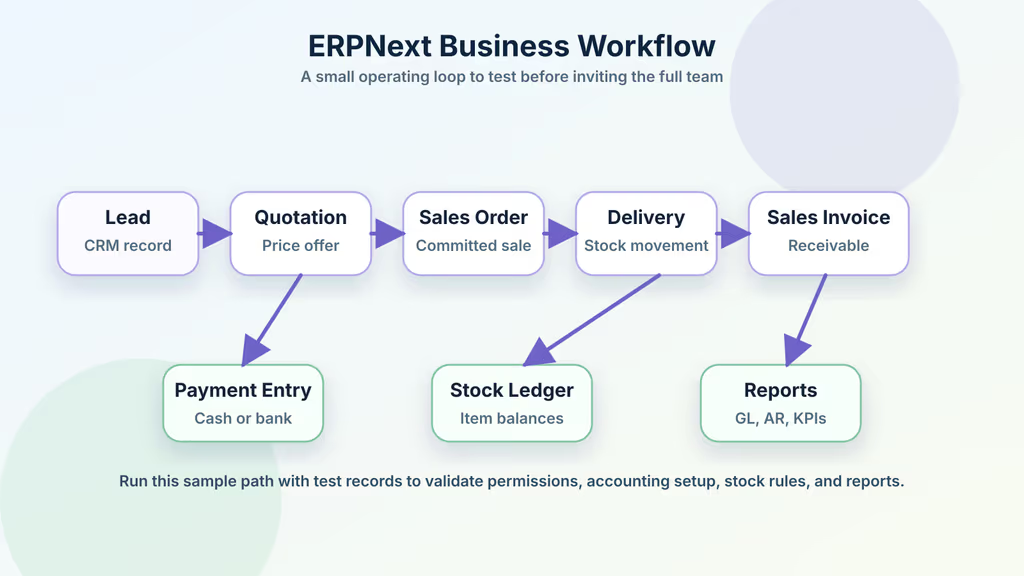
In the browser, create a safe sample workflow:

  1. Create one test customer and one test supplier.
  2. Add one item with a stock unit of measure.
  3. Create a quotation, convert it to a sales order, and submit a sales invoice.
  4. Record a payment entry against the invoice.
  5. Create a purchase receipt or stock entry for the same item.
  6. Review the general ledger, stock ledger, accounts receivable, and item balance reports.
  7. Delete or cancel test records according to your accounting policy before real use.

This exercise confirms that the scheduler, background jobs, permissions, accounting configuration, and reports are usable. It also gives finance and operations users a chance to find configuration mistakes before real invoices go out.

Backups and Restore Planning

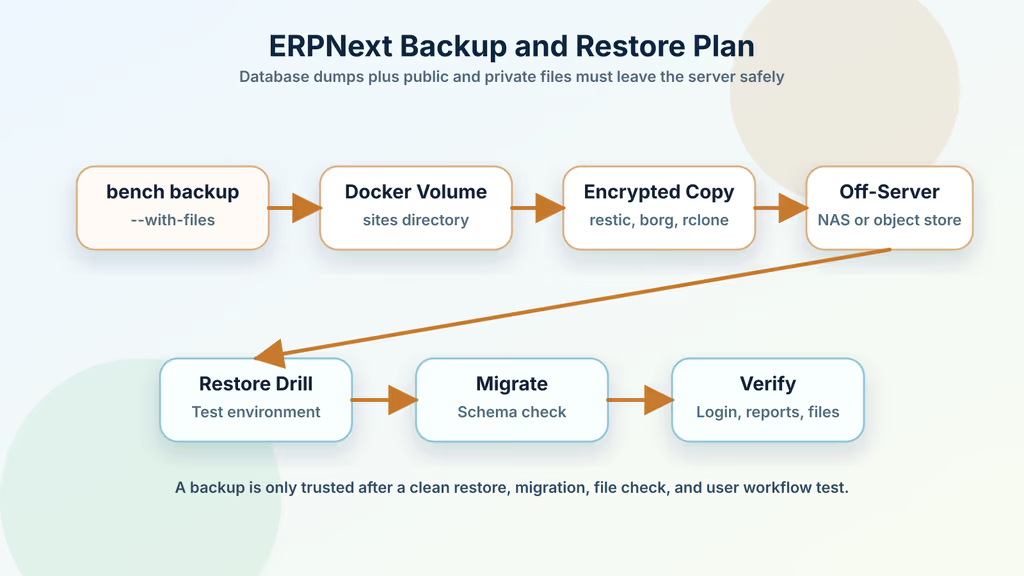
ERPNext backups should include the database and files. Frappe's bench backup command can include public and private files with --with-files.

 ERPNext backup and restore plan

Caption: Reliable ERPNext operations require database dumps, public files, private files, encrypted off-server copies, restore drills, and upgrade rehearsals.

Run a manual backup:

docker compose --project-name erpnext -f ~/gitops/erpnext.yaml exec backend \
  bench --site erp.example.com backup --with-files

For a simple single-host schedule, create a root-owned cron entry that runs backups and then syncs the generated files to encrypted off-server storage:

sudo crontab -e

Add a schedule like this and adjust the sync command to your backup destination:

0 */6 * * * docker compose --project-name erpnext -f /home/ubuntu/gitops/erpnext.yaml exec backend bench --site all backup --with-files >/var/log/erpnext-backup.log 2>&1

The backup command alone keeps files inside the Docker volume. That is not enough if the server is lost. Add a second step with your approved backup tool, such as restic, borg, rclone, or your provider's encrypted backup agent. Then rehearse restoring into a separate test environment before depending on the backup plan.

Troubleshooting

  • No HTTPS certificate appears: Confirm DNS points to the server, ports 80 and 443 are reachable, NGINX_PROXY_HOSTS contains the exact hostname, and acme-companion logs show a successful challenge.
  • bench new-site cannot connect to MariaDB: Recheck DB_PASSWORD in erpnext.env, load the same value from erpnext-secrets.env, and confirm the db service is running.
  • Login page loads but background actions stall: Check Redis queue services and scheduler status with bench --site erp.example.com scheduler status.
  • Large imports or reports time out: Review frontend proxy timeouts, background worker logs, and available RAM before increasing workload.
  • Email does not send: Configure SMTP inside ERPNext, send a test email, and check both ERPNext error logs and provider authentication requirements.
  • Uploads fail: Inspect disk usage for Docker volumes and check proxy upload limits if users attach large PDFs or images.
  • After an upgrade, pages behave strangely: Run migrations, clear cache, rebuild assets if instructed by release notes, and verify custom apps or scripts against the new version.
  • Accounting reports look wrong: Stop entering production transactions until the company, fiscal year, chart of accounts, taxes, and opening balances are reviewed by the responsible finance owner.

Scaling, Securing, and Next Steps

The single-server Docker deployment is a practical starting point. It can support a small team well when the host is sized correctly, backups are tested, and business processes are configured carefully. As adoption grows, watch database size, attachment growth, report latency, background queue depth, and concurrent user behavior.

For security, create named user accounts, review role permissions, protect administrator credentials, require HTTPS, back up off-server, and keep operational access limited. For reliability, document upgrade steps, keep a rollback plan, test restores, and run updates in a staging copy before production. For business success, bring finance and operations users into validation early; ERP systems fail more often from poor process design than from container syntax.

Following this guide gives you a self-hosted ERPNext baseline with Docker Compose, HTTPS, a first site, backup commands, and verification checks. From here, you can configure modules, import master data, connect email, design print formats, add custom fields, and gradually move real workflows into ERPNext after users have reviewed the setup.

References

Share:

Get new posts in your inbox

No spam. One short email per new article — practical PHP, Laravel, devops, and AI-assisted workflows.

Comments

Powered by GitHub Discussions via Giscus. A free GitHub account is required.