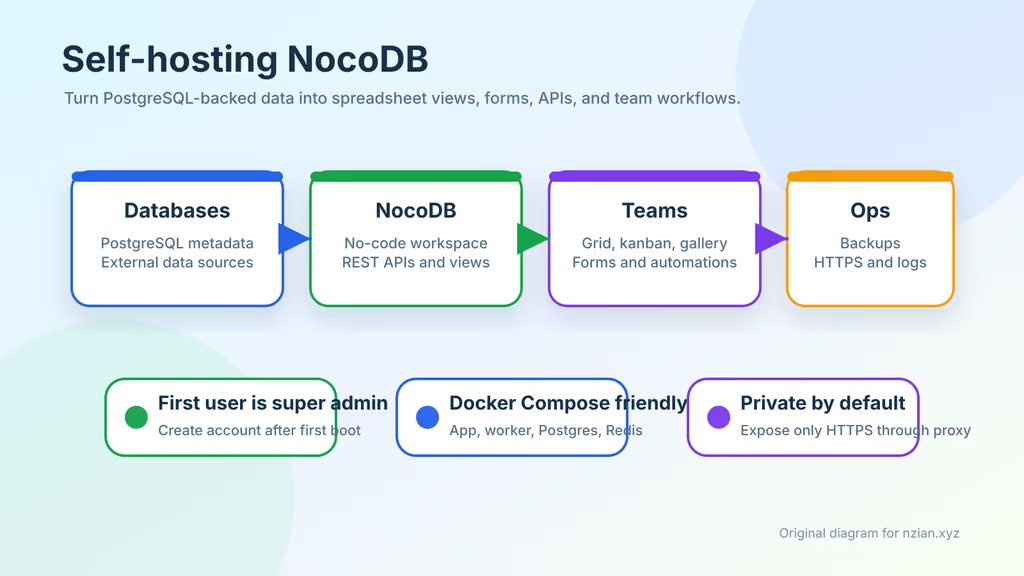
Caption: Grid views and forms on my VPS, Postgres and Redis behind Nginx — not another hosted spreadsheet bill.
Why I wanted this on my server
I keep operational lists that do not deserve a custom Laravel admin: inventory of domains, content calendars, intake forms, QA queues. Spreadsheets rot. Airtable is fine until the seat count and the export story start to bother me.
NocoDB looked like the right shape: Postgres underneath, a browser grid on top, REST when I need it. I wanted that on Ubuntu 24.04, behind my own hostname, with backups I can restore.
What I actually installed
Docker Compose under /opt/nocodb: NocoDB, a worker, PostgreSQL 17, Redis 7. Nginx terminates HTTPS. The app binds to 127.0.0.1:8080. Replace nocodb.example.com with your hostname before you copy anything.
Hardware I used as a floor: 2 vCPU and 2 GB RAM for a small team; 4 GB if the box already runs other stacks. SSD for Postgres. Off-server copies of dumps and the nocodb_data volume.
Where it broke
On a fresh Ubuntu 24.04 box this install is famous for generating links against the wrong host.
The stack was healthy. Login worked. Then invitation mail and Swagger URLs ignored https://nocodb.example.com. NocoDB had no idea it sat behind Nginx until I set:
NC_SITE_URL=https://nocodb.example.com
I restarted nocodb and worker, and confirmed Nginx forwarded Host and X-Forwarded-Proto. After that, generated links matched the public URL.
The other trap is the first signup: that account is super admin. I created it from a trusted network before I advertised the hostname.
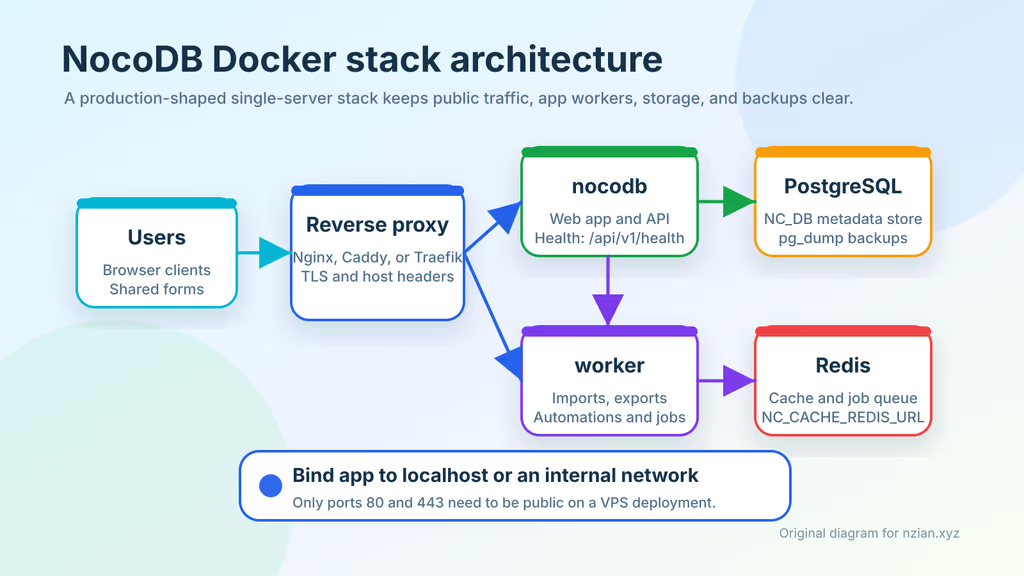
Caption: HTTPS at Nginx only. NocoDB, worker, Postgres, Redis, and volumes stay on the box.
Prerequisites
Updated host, Docker Engine with Compose v2 (not snap Docker), Nginx, Certbot, a password manager for Postgres, NC_AUTH_JWT_SECRET, and NC_CONNECTION_ENCRYPT_KEY. SMTP only if I actually need invite and reset mail.
sudo apt update
sudo apt upgrade -y
sudo apt install -y ca-certificates curl gnupg git ufw nginx certbot python3-certbot-nginx openssl

sudo ufw allow OpenSSH
sudo ufw allow 80/tcp
sudo ufw allow 443/tcp
sudo ufw enable
sudo ufw status
I do not publish port 8080. Bind it to localhost.
The working install
1. Install Docker Engine
curl -fsSL https://get.docker.com | sudo sh
sudo usermod -aG docker "$USER"
newgrp docker

docker --version
docker compose version
If the Docker group is inactive in this shell, log out and back in.
2. Create the project directory
sudo mkdir -p /opt/nocodb/backups
sudo chown -R "$USER":"$USER" /opt/nocodb
chmod 700 /opt/nocodb/backups
cd /opt/nocodb
3. Generate secrets and create .env
cd /opt/nocodb

POSTGRES_PASSWORD_VALUE="$(openssl rand -base64 36 | tr -d '\n')"
JWT_SECRET_VALUE="$(openssl rand -hex 32)"
CONNECTION_KEY_VALUE="$(openssl rand -hex 32)"

cat > .env <<EOF
COMPOSE_PROJECT_NAME=nocodb
POSTGRES_PASSWORD=${POSTGRES_PASSWORD_VALUE}
NC_AUTH_JWT_SECRET=${JWT_SECRET_VALUE}
NC_CONNECTION_ENCRYPT_KEY=${CONNECTION_KEY_VALUE}
NC_SITE_URL=https://nocodb.example.com
EOF

chmod 600 .env
nano .env
NC_AUTH_JWT_SECRET is required in production even though NocoDB can invent a random value if you skip it. NC_CONNECTION_ENCRYPT_KEY protects stored external database credentials. Lose it and those connections become unreadable. I keep both keys with the backup set.
4. Create the Docker Compose file
services:
  nocodb:
    image: nocodb/nocodb:latest
    restart: unless-stopped
    environment:
      NC_DB: "pg://db:5432?u=nocodb&p=${POSTGRES_PASSWORD}&d=nocodb"
      NC_AUTH_JWT_SECRET: "${NC_AUTH_JWT_SECRET}"
      NC_CONNECTION_ENCRYPT_KEY: "${NC_CONNECTION_ENCRYPT_KEY}"
      NC_SITE_URL: "${NC_SITE_URL}"
      NC_CACHE_REDIS_URL: "redis://redis:6379"
      NC_JOBS_REDIS_URL: "redis://redis:6379"
      NC_DISABLE_MUX: "true"
    depends_on:
      db:
        condition: service_healthy
      redis:
        condition: service_healthy
    ports:
      - "127.0.0.1:8080:8080"
    volumes:
      - nocodb_data:/usr/app/data
    healthcheck:
      test: ["CMD-SHELL", "wget -q --tries=1 --spider http://localhost:8080/api/v1/health || exit 1"]
      interval: 30s
      timeout: 5s
      retries: 5
      start_period: 30s

  worker:
    image: nocodb/nocodb:latest
    restart: unless-stopped
    environment:
      NC_DB: "pg://db:5432?u=nocodb&p=${POSTGRES_PASSWORD}&d=nocodb"
      NC_AUTH_JWT_SECRET: "${NC_AUTH_JWT_SECRET}"
      NC_CONNECTION_ENCRYPT_KEY: "${NC_CONNECTION_ENCRYPT_KEY}"
      NC_SITE_URL: "${NC_SITE_URL}"
      NC_CACHE_REDIS_URL: "redis://redis:6379"
      NC_JOBS_REDIS_URL: "redis://redis:6379"
      NC_WORKER_MODE_ENABLED: "true"
    depends_on:
      nocodb:
        condition: service_healthy
    volumes:
      - nocodb_data:/usr/app/data

  db:
    image: postgres:17.10
    restart: unless-stopped
    environment:
      POSTGRES_USER: nocodb
      POSTGRES_PASSWORD: "${POSTGRES_PASSWORD}"
      POSTGRES_DB: nocodb
    volumes:
      - postgres_data:/var/lib/postgresql/data
    healthcheck:
      test: ["CMD-SHELL", "pg_isready -U nocodb -d nocodb"]
      interval: 10s
      timeout: 5s
      retries: 5

  redis:
    image: redis:7
    restart: unless-stopped
    volumes:
      - redis_data:/data
    healthcheck:
      test: ["CMD", "redis-cli", "ping"]
      interval: 10s
      timeout: 5s
      retries: 5

volumes:
  nocodb_data:
  postgres_data:
  redis_data:
The official quickstart is the same shape: app, worker, Postgres, Redis. After a known-good boot I pin the NocoDB image tag.
5. Start NocoDB
cd /opt/nocodb
docker compose pull
docker compose up -d
docker compose ps
docker compose logs --since=2m nocodb worker
First boot runs migrations. If health stays red, I check NC_DB (service name db, user nocodb, password matching .env) and Redis at redis:6379.
6. Configure Nginx and HTTPS
/etc/nginx/sites-available/nocodb.example.com:
server {
    listen 80;
    listen [::]:80;
    server_name nocodb.example.com;

    client_max_body_size 100M;

    location / {
        proxy_http_version 1.1;
        proxy_set_header Host $host;
        proxy_set_header X-Real-IP $remote_addr;
        proxy_set_header X-Forwarded-For $proxy_add_x_forwarded_for;
        proxy_set_header X-Forwarded-Proto $scheme;
        proxy_set_header Upgrade $http_upgrade;
        proxy_set_header Connection "upgrade";
        proxy_pass http://127.0.0.1:8080;
    }
}
sudo ln -s /etc/nginx/sites-available/nocodb.example.com /etc/nginx/sites-enabled/
sudo nginx -t
sudo systemctl reload nginx
sudo certbot --nginx -d nocodb.example.com
Then https://nocodb.example.com. First signup is super admin.
Important reminder
The worker is not optional if you import or export. It needs the same NC_DB, Redis URLs, JWT secret, and encrypt key as the web container, plus NC_WORKER_MODE_ENABLED=true. I keep both images on the same tag. If an export sits forever, I read docker compose logs --since=5m worker before I blame the UI.
Redis is cache and jobs:
NC_CACHE_REDIS_URL=redis://redis:6379
NC_JOBS_REDIS_URL=redis://redis:6379
First base I actually used
I did not dump production CRM into it on day one. I built a small inventory table: tool name, owner, domain, renewal date, runbook URL. Grid for me, a form for intake, one non-admin invite to check permissions. Then I restarted nocodb and worker and confirmed the workspace still loaded.
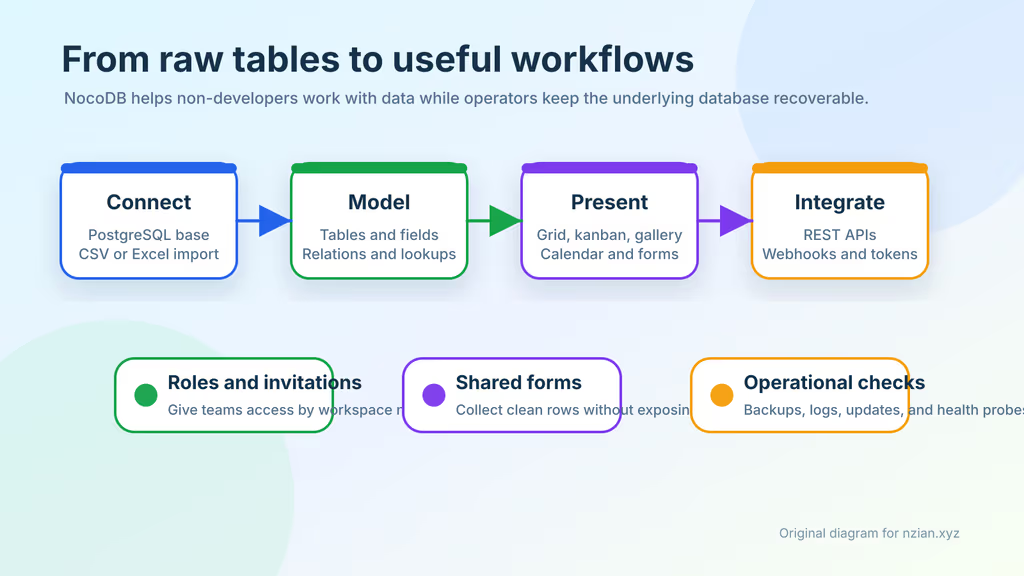
Caption: Tables and views in the browser; APIs when I need them; Postgres as the thing I actually back up.
Backup, expose, next step
Postgres dump, .env + Compose, and the nocodb_data volume (attachments live there). Volume name follows the Compose project; if COMPOSE_PROJECT_NAME is not nocodb, docker volume ls first.
cd /opt/nocodb
mkdir -p backups
BACKUP_DATE="$(date +%F-%H%M%S)"

docker compose exec -T db pg_dump -U nocodb nocodb > "backups/nocodb-postgres-${BACKUP_DATE}.sql"
tar czf "backups/nocodb-config-${BACKUP_DATE}.tar.gz" compose.yaml .env
docker run --rm \
  -v nocodb_nocodb_data:/data:ro \
  -v "$PWD/backups:/backups" \
  alpine tar czf "/backups/nocodb-data-${BACKUP_DATE}.tar.gz" -C /data .

sha256sum backups/nocodb-*-"${BACKUP_DATE}".* > "backups/nocodb-${BACKUP_DATE}.sha256"
rsync -avh /opt/nocodb/backups/ backup-user@backup.example.com:/srv/backups/nocodb/
A restore that counts: import Postgres, restore the data volume, reuse the same .env secrets, start the stack, then check login, views, forms, attachments, and API tokens.
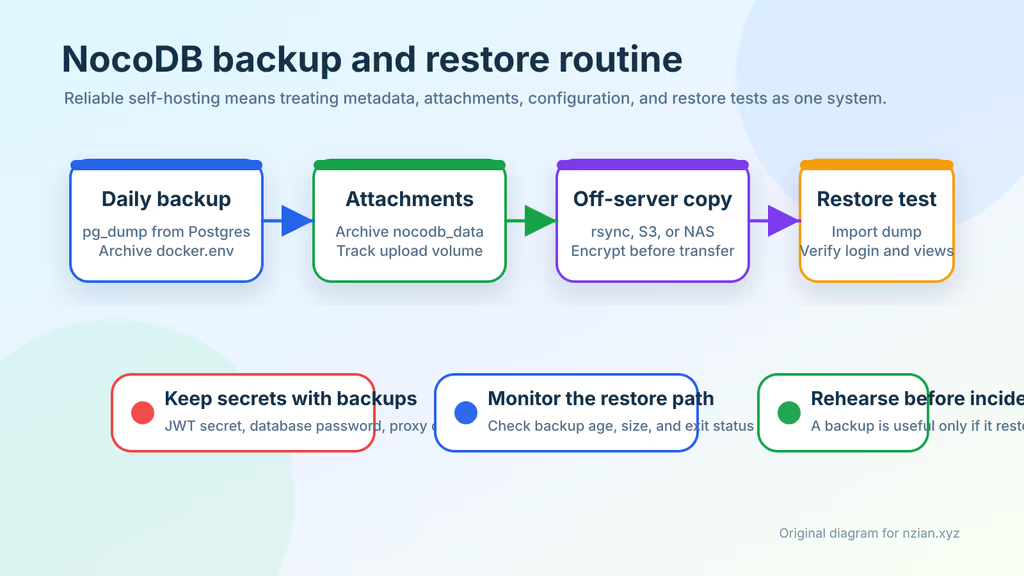
Caption: Metadata, attachments, secrets, off-server copy, restore test. Skip any one of those and I do not trust the backup.
What I have running now is NocoDB on HTTPS, worker attached, first base limited to junk I can lose. Next I add SMTP for real invites, pin the image tag, and rehearse restore on a spare VM before I move anything I care about.
Did you hit the same wall?
I got stuck on NC_SITE_URL — invitation and Swagger links ignored my HTTPS hostname until I set the public URL and restarted both containers. Did you hit the same thing, or a different one? Tell me in the comments. I read them.
Need this done on your server?
I deploy and harden Laravel/CodeCanyon apps on cPanel or VPS, and offer monthly Server Watch retainers. Hire for deploy · Care plan